
A healthy contact list is the single biggest factor in whether your mailings arrive. Groupmail gives you three tools for keeping one: contact statuses, the exclusion list, and bulk purging.
Reading the status counts
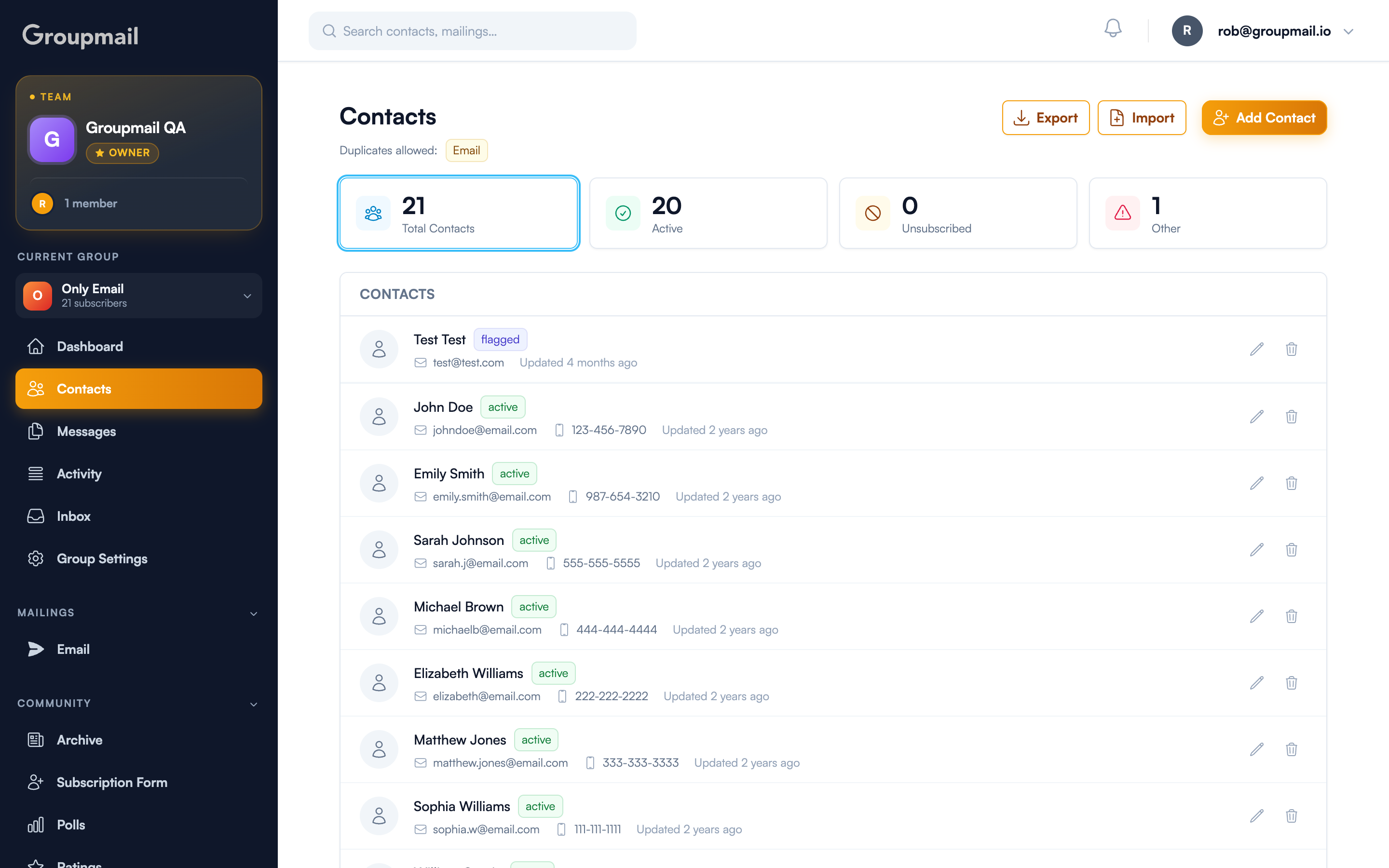
Contacts shows totals at a glance — Total Contacts, Active, Unsubscribed, and Other — with a status badge on each row.
- Active — will receive your mailings
- Unsubscribed — opted out; never mailed again
- Flagged — failed validation on import or afterwards. Groupmail marks these rather than deleting them, so you can decide. See Why Didn't a Contact Receive My Campaign? for what the flag types mean.
The Duplicates allowed badge near the top shows the group's duplicate policy, so you know whether a re-import will create second copies or merge.
The exclusion list
The exclusion list — sometimes called a suppression list — is the master "never contact these" register.
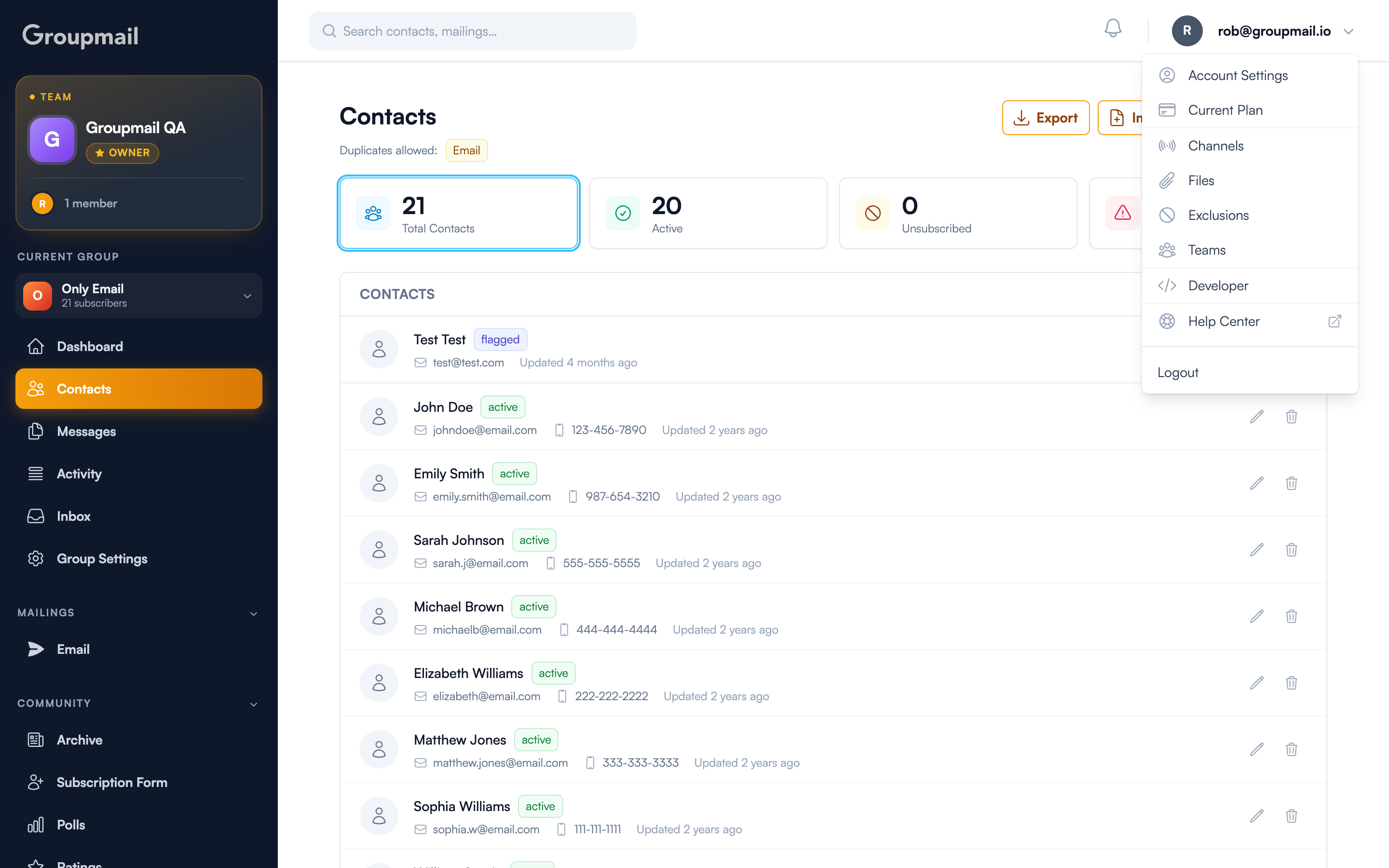
It's in the account menu, not the sidebar: click your email address at the top right, then Exclusions. That location makes sense once you know it applies to your whole account rather than the group you're currently in.
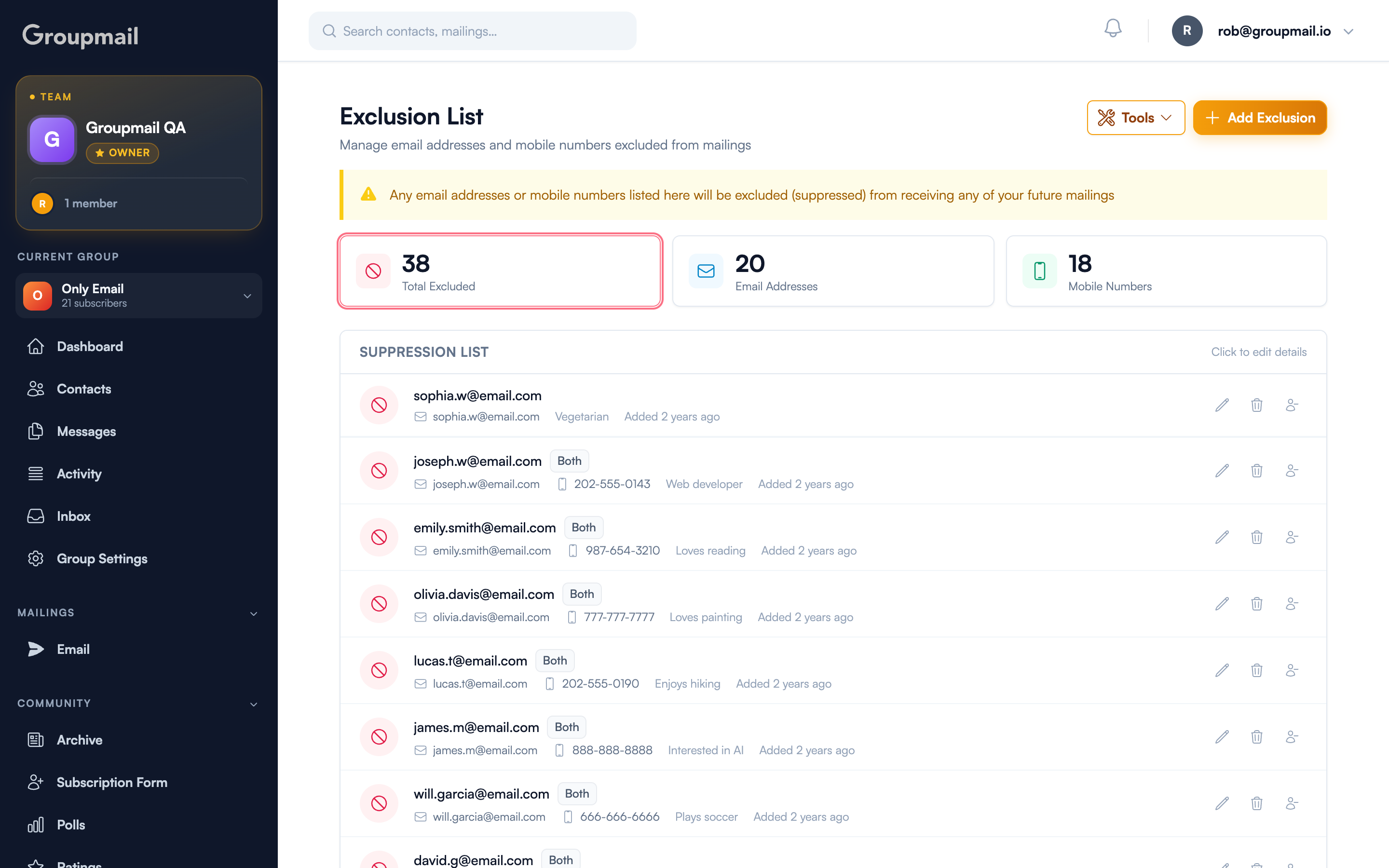
Anything listed here is excluded from all future mailings, across every group. It covers both email addresses and mobile numbers, counted separately at the top.
Addresses arrive here automatically after a hard bounce, a spam complaint, or a dropped send. Those are deliverability problems, so they apply everywhere.
Unsubscribes work differently, and the difference matters. An unsubscribe is recorded on the contact in that group — it is not added to the exclusion list. That's deliberate: someone leaving one group should still receive the other groups they chose to be on. Putting them on the exclusion list would silently stop every group.
You can add entries yourself with Add Exclusion, or bulk-load them via Tools → Import from CSV — useful when someone asks to be removed entirely, by phone or in person. Use it only when you mean all mail, not one group.
Tools holds bulk operations, including clearing the list in one go rather than deleting entries one at a time.
Removing contacts in bulk
If you plan to purge and re-import: export your contacts first, set aside anyone marked unsubscribed, and leave them out of the file you re-upload. Don't add them to the exclusion list instead — that blocks them across every group, which is more than they asked for.
To remove many contacts at once, use Purge Contacts (under Groups). It's a three-step wizard — Select Group, Configure Purge, Review & Confirm — so nothing happens until you've seen exactly what will go.
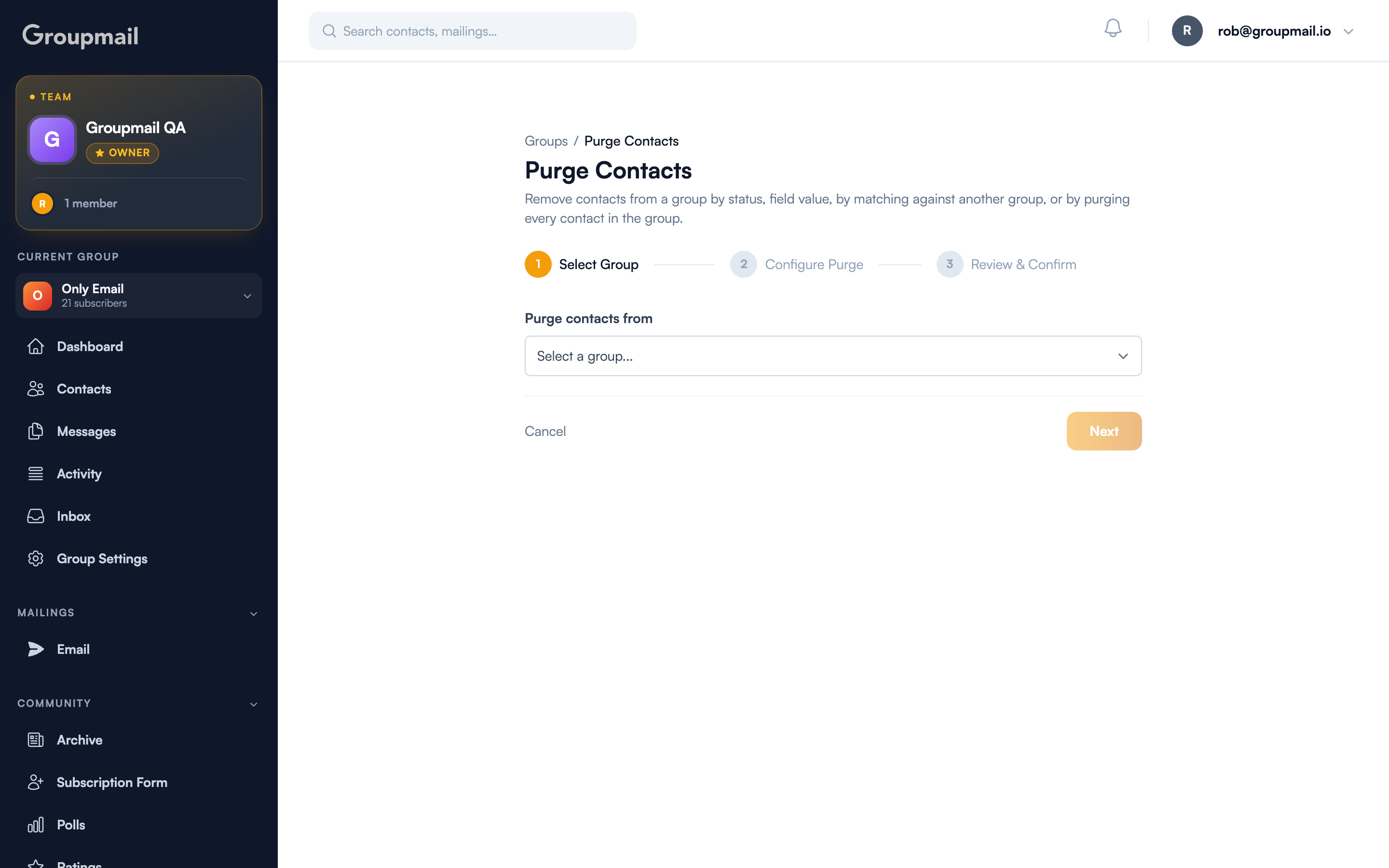
You can purge by:
- Status — for example, clearing everything marked unsubscribed
- Field value — matching on a field you store
- Matching against another group — removing anyone who appears in a second group
- Every contact in the group — a complete empty-out
Purge changes who is in the list. Exclusion changes who can be contacted. They are not interchangeable, and mixing them up is how people accidentally re-mail someone who asked them to stop.
Quick answers
What's the difference between purging and excluding? Purging removes contacts from a group. Excluding suppresses an address across every future mailing. To ensure someone is never contacted again, exclude them.
Why is a contact flagged? It failed validation — an unreachable address, a disposable mailbox, or one matching spam patterns. Flagged contacts are marked rather than deleted so you can review them.
Does the exclusion list cover SMS? Yes. It holds both email addresses and mobile numbers, counted separately.
Can I clear the whole exclusion list at once? Yes, via Tools on the Exclusion List page — but think carefully first: it re-enables mailing to everyone who had been suppressed.
How do I remove everyone from a group? Purge Contacts, then choose the option to purge every contact. You'll see a review step before anything is deleted.