
Groupmail Teams lets you invite people to your account and share a group so everyone can see and work on its contacts, mailings, templates, inbox, polls and ratings together — with one plan, one sending allowance, and credits pooled across the whole team.
How do I invite my team to Groupmail?
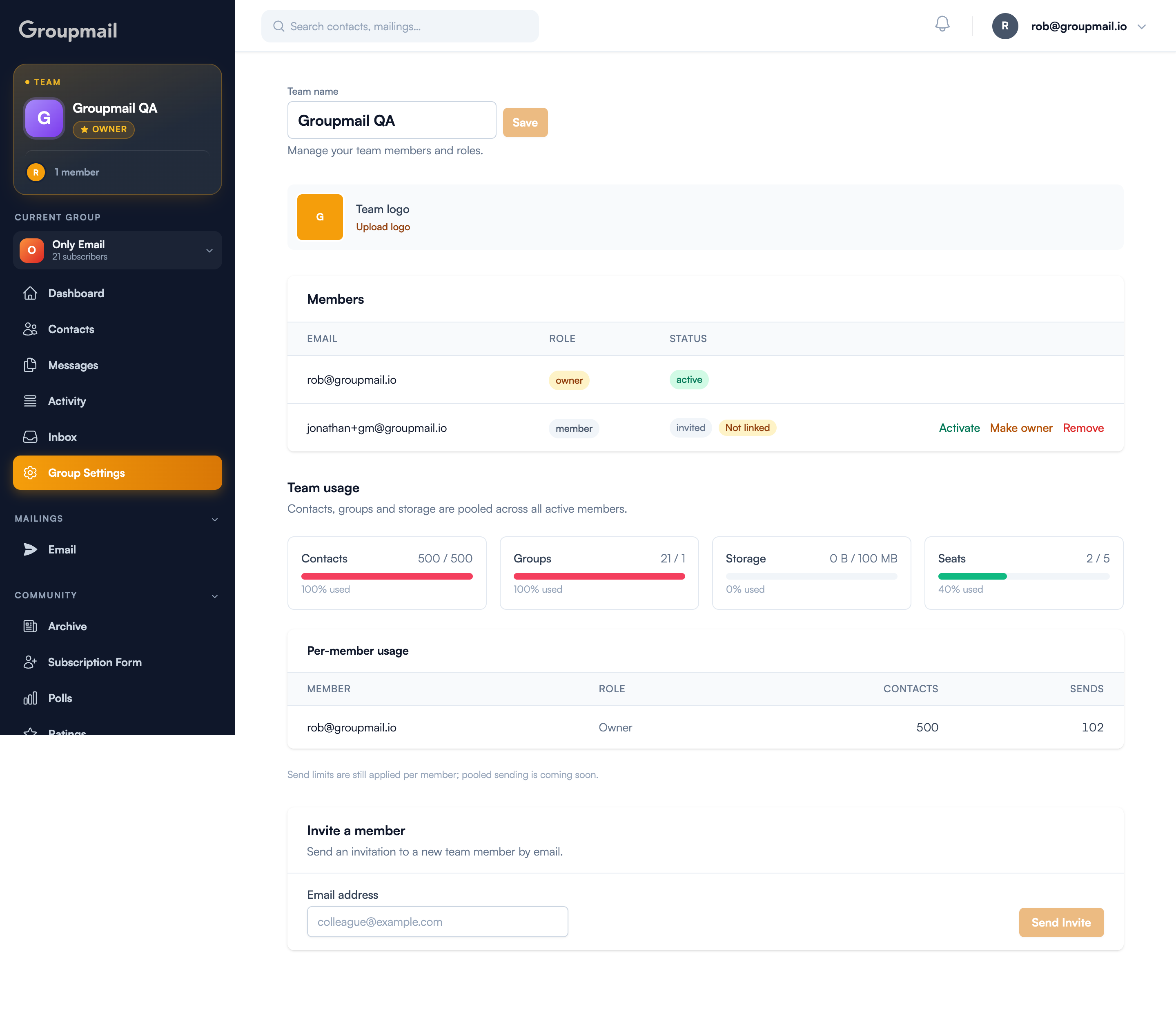
Click the Team card at the very top of the sidebar — it shows your team name and member count — to open your team page. Then use the Invite a member form at the bottom to send an invitation by email.
Each invite uses one of your team's seats; the Seats meter under Team usage shows how many you've used. Invited teammates get an email with a link to accept. Once they accept, they show up in your members list and can start working in any group you've shared with the team.
How do I share a group with my team?
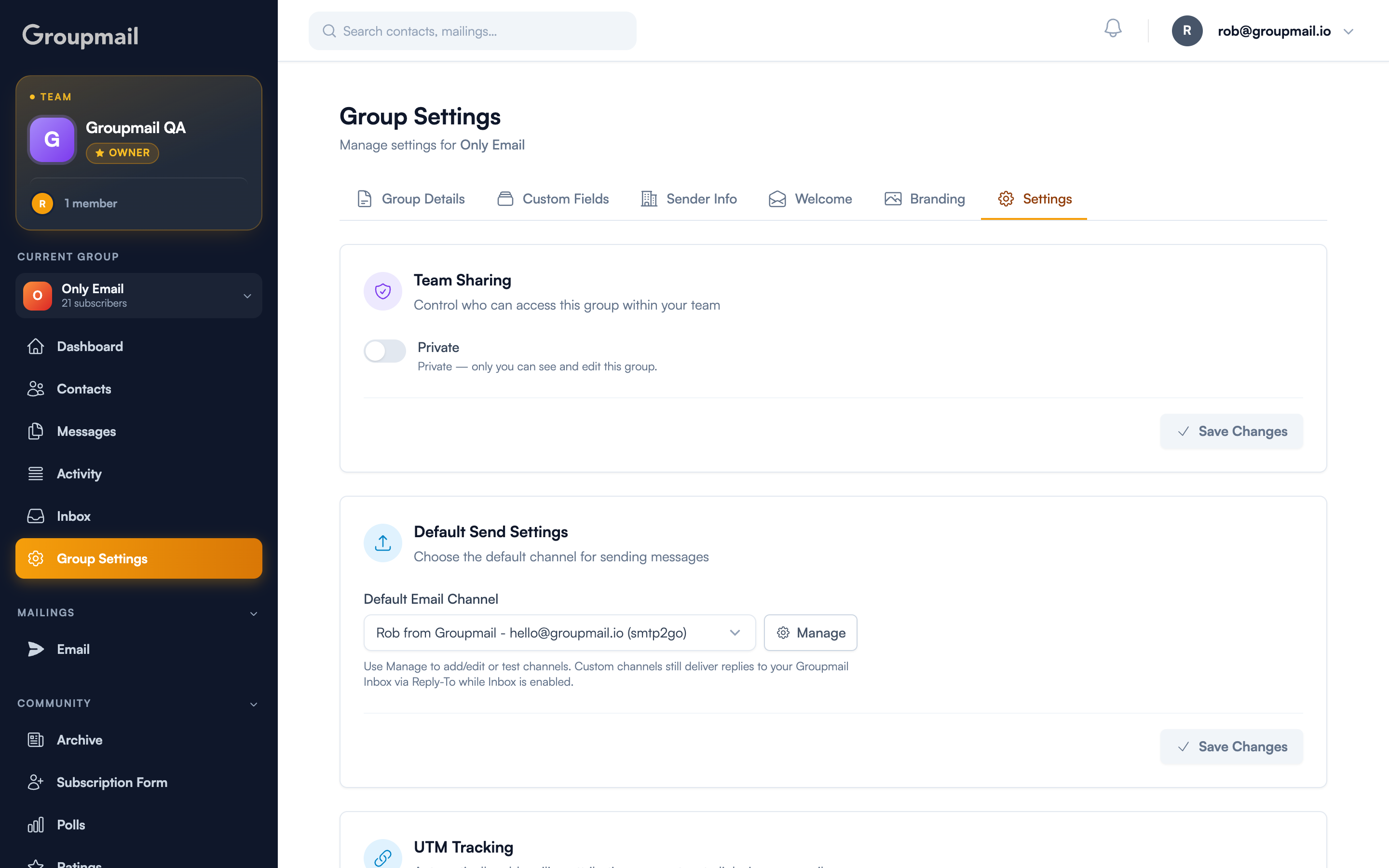
Sharing is per-group, not all-or-nothing. Open Group Settings → Settings and find the Team Sharing card. Turn its Private toggle off and that single switch shares:
- Its contacts
- Its mailings and templates
- Its reply inbox
- Its polls and ratings
- Its community archive
Turn Private on for any group you want to keep to yourself — the card's own description puts it plainly: "Private — only you can see and edit this group."
What happens if two teammates edit the same thing at once?
Groupmail won't let a second save silently overwrite the first. You'll see who else is in the record right now (for example, "Jane is editing"), and if you both try to save, you're offered Review, Overwrite, or Keep editing instead of losing anyone's changes.
A quiet activity bar on shared groups shows what teammates just changed, so you don't need to ask.
Who can delete shared contacts, mailings, or groups?
Everyday work — editing contacts, mailings, templates, polls, and ratings — stays open to the whole team. Deleting is more restricted: only the person who created a mailing, template, poll, rating, or group (or the team owner) can delete it.
Sharing a group shares the work, not the risk — deletion stays with whoever's responsible for that item.
Does Teams work with the Groupmail developer API?
Yes. A team API key reads your shared data, and any changes made through the API show up in the same activity feed as changes made in the app — so shared visibility doesn't stop at the UI.
Quick answers
What is Groupmail Teams? A shared workspace add-on that lets multiple people work on the same Groupmail account — sharing groups, contacts, mailings, and inbox under one plan.
How many people can I invite? As many as your team's seats allow — check the Seats meter under Team usage on your team page.
Can I keep some groups private from my team? Yes — sharing is per-group. Turn on a group's Private toggle in Group Settings → Settings → Team Sharing and only you can see it.
Will inviting a team change my billing? Contacts, groups and storage are pooled across all active members under one plan. Send limits are still applied per member for now. Your team page shows current usage before you invite.