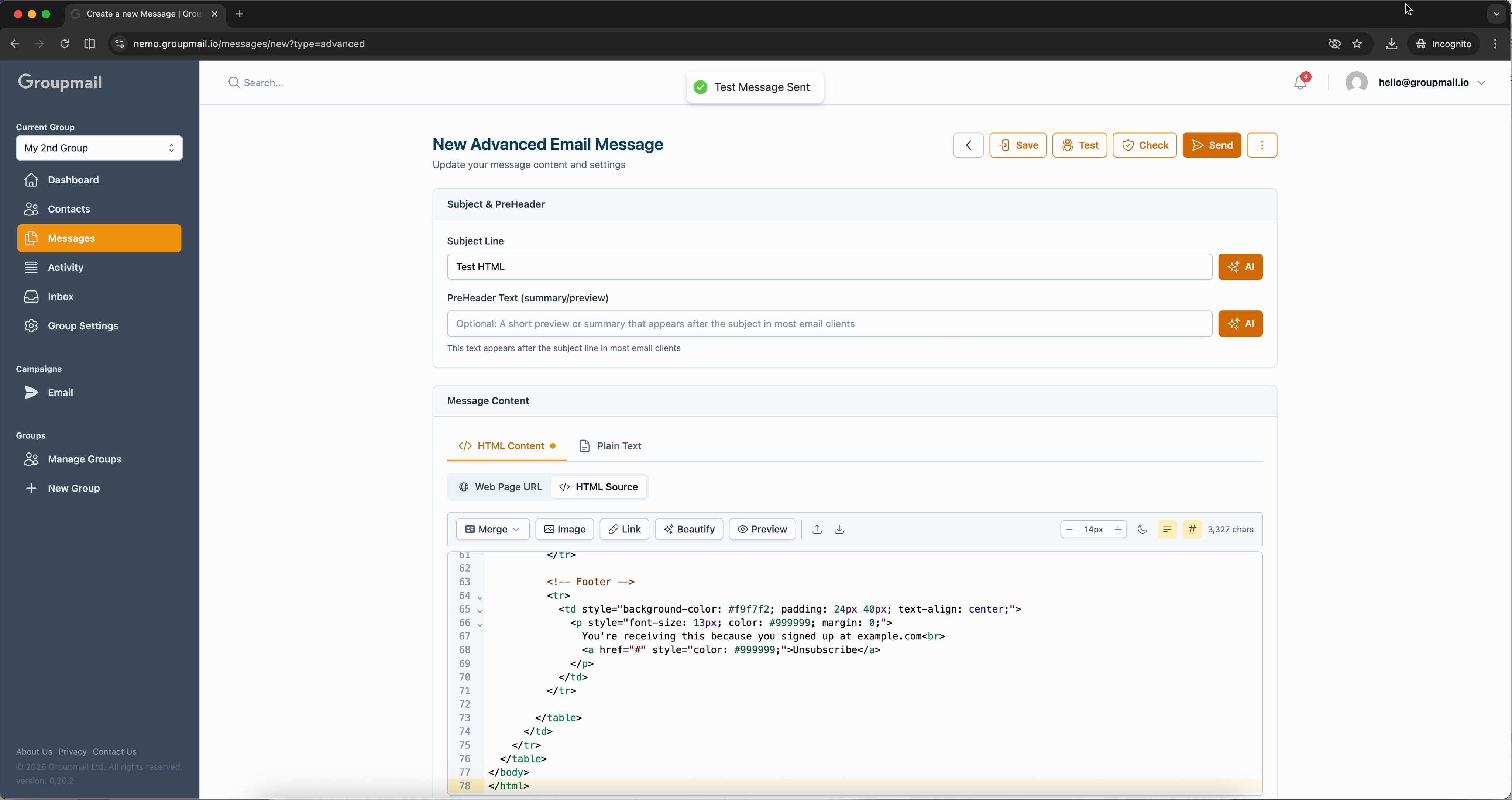
The Advanced Editor gives you full control over your email by letting you write or paste your own HTML. It's ideal when you have a custom design, an email exported from another tool, or a newsletter hosted on a web page.
Open the Advanced Editor
From the Messages page, click New Message and select Advanced. The editor opens with familiar fields at the top — Subject Line and Preheader Text — plus AI buttons for generating suggestions.
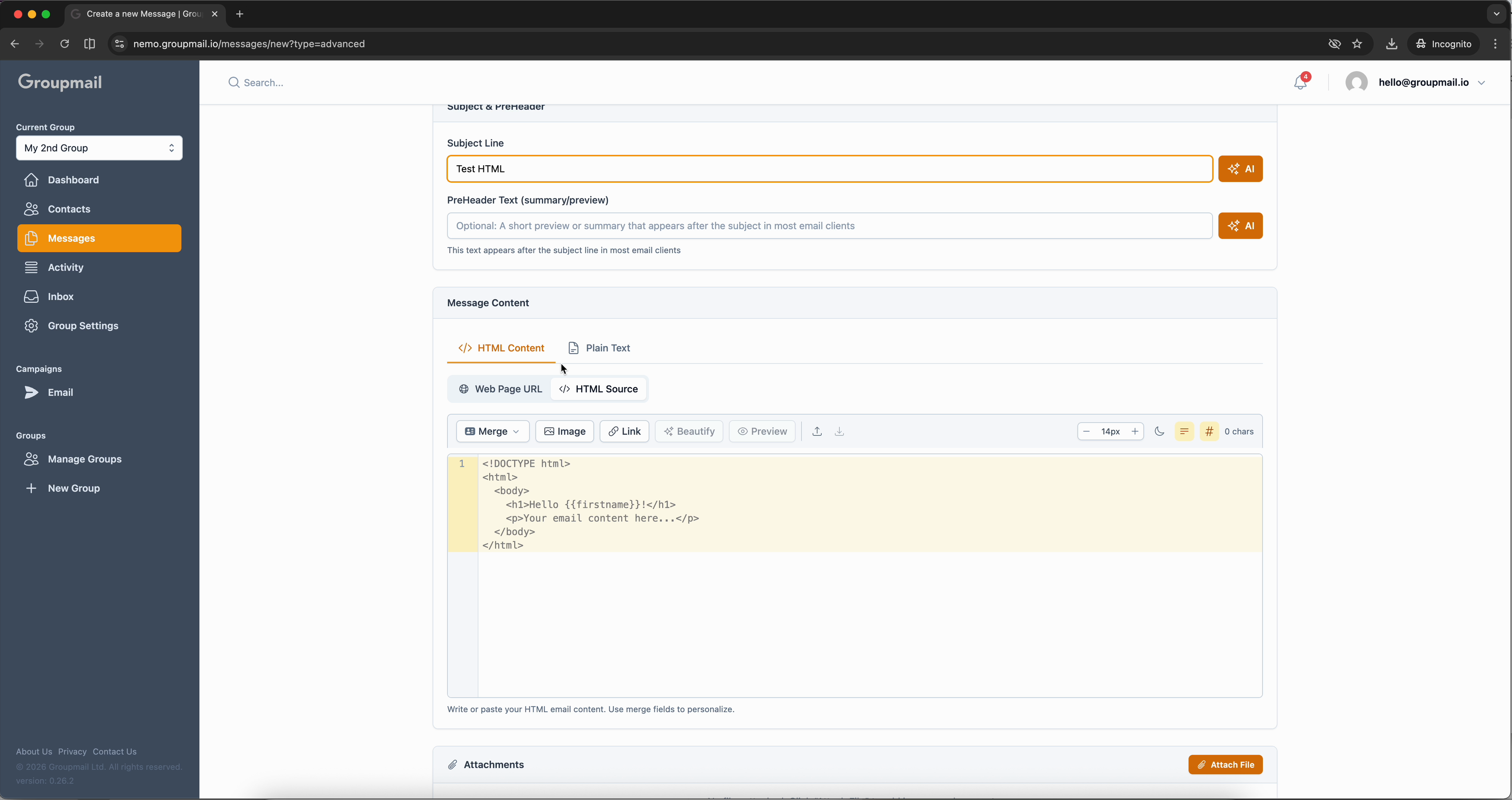
Below that is the Message Content area with two main tabs: HTML Content and Plain Text.
Write or Paste HTML
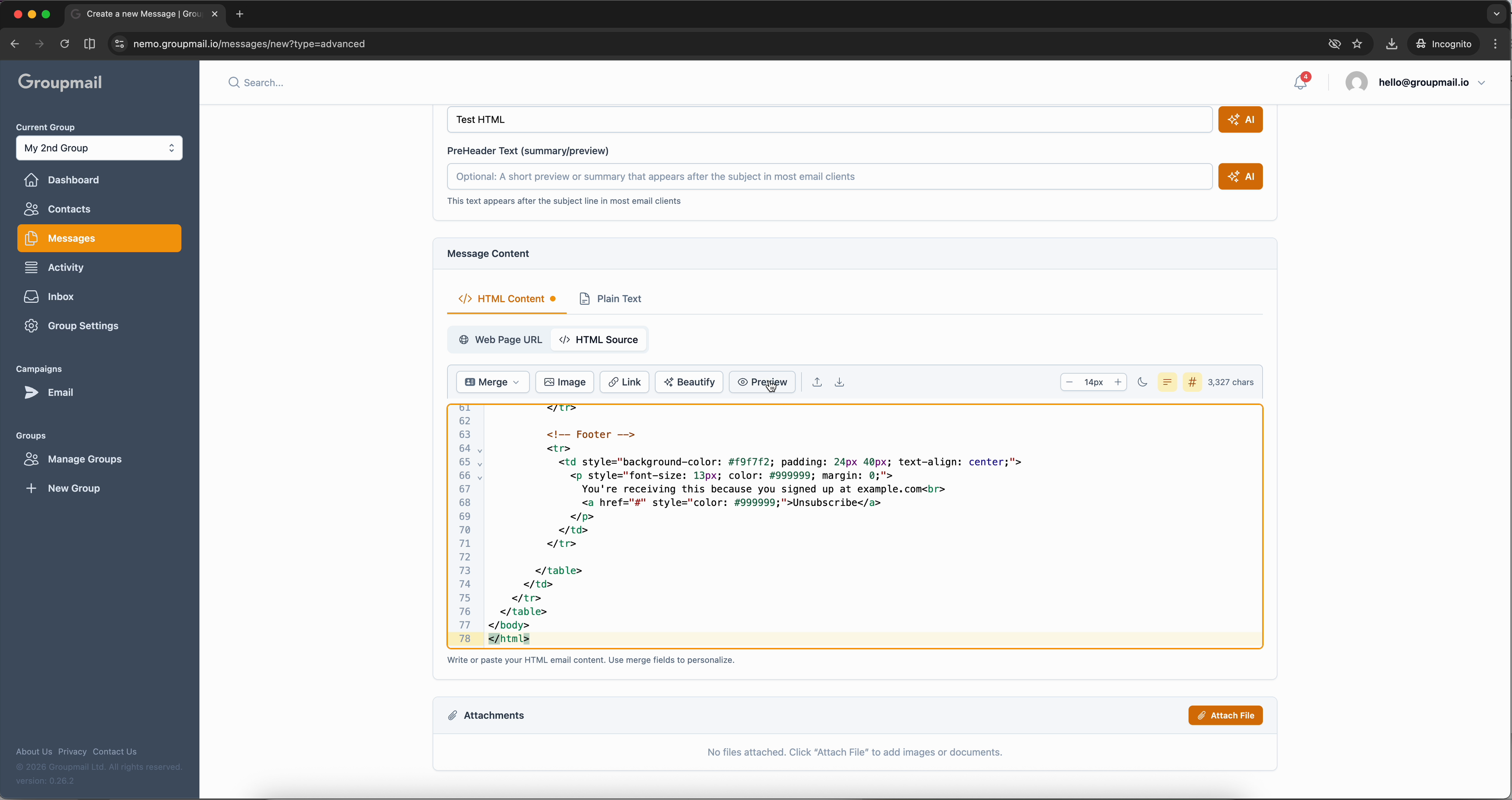
The HTML Content tab has two sub-tabs. HTML Source opens a full code editor where you write or paste your HTML directly. Groupmail provides a starter template with basic structure and a {{firstname}} merge tag already in place.
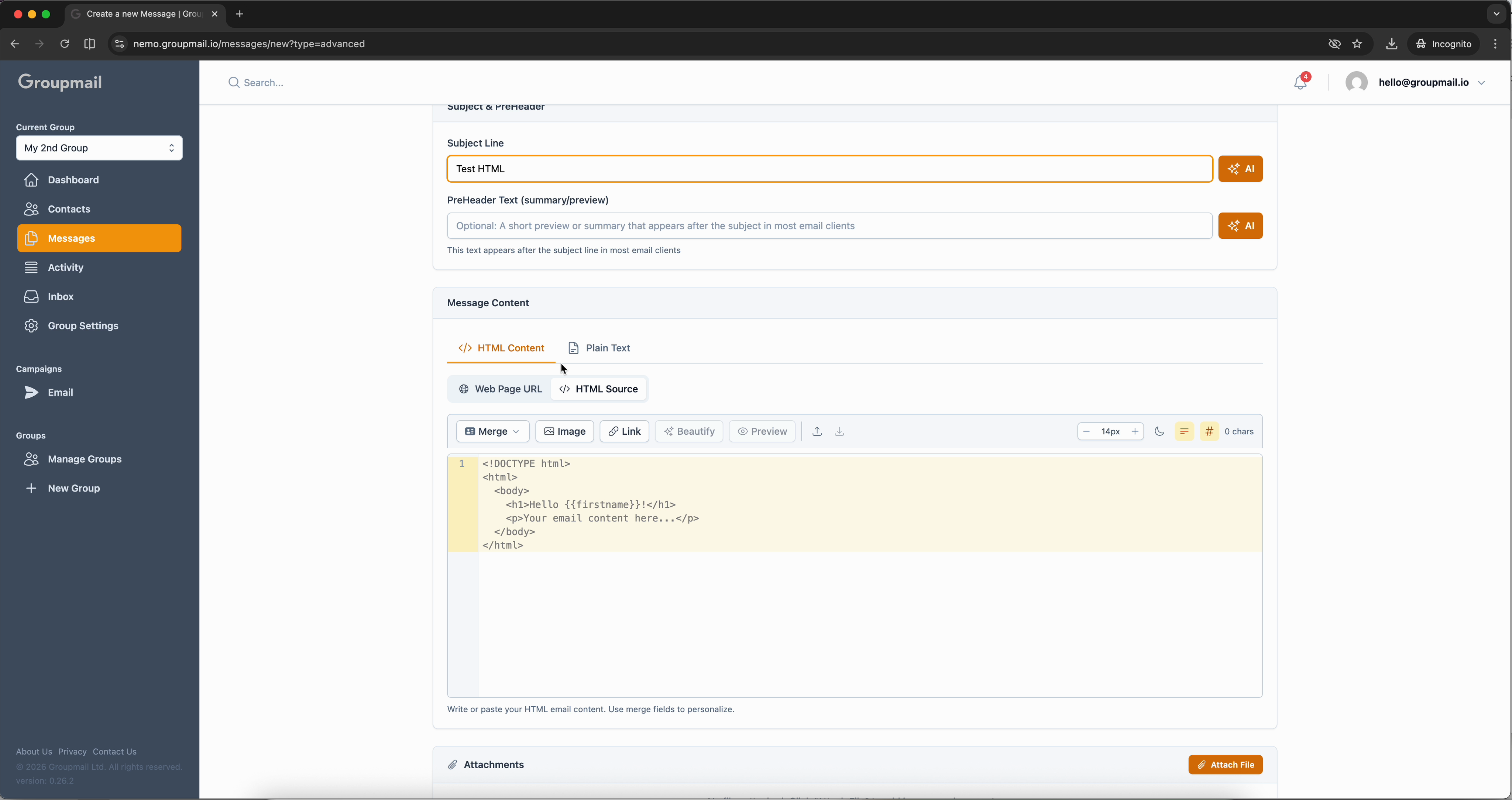
The toolbar above the editor provides quick access to Merge fields, Image insertion, Link creation, a Beautify button to clean up your code formatting, and a Preview button.
The Advanced Editor is perfect when you need pixel-perfect control — paste HTML from any email builder and Groupmail sends it exactly as designed.
Use a Web Page URL
The second sub-tab under HTML Content is Web Page URL. If your email is already hosted online, paste the URL here and Groupmail will fetch the content automatically when sending your campaign.
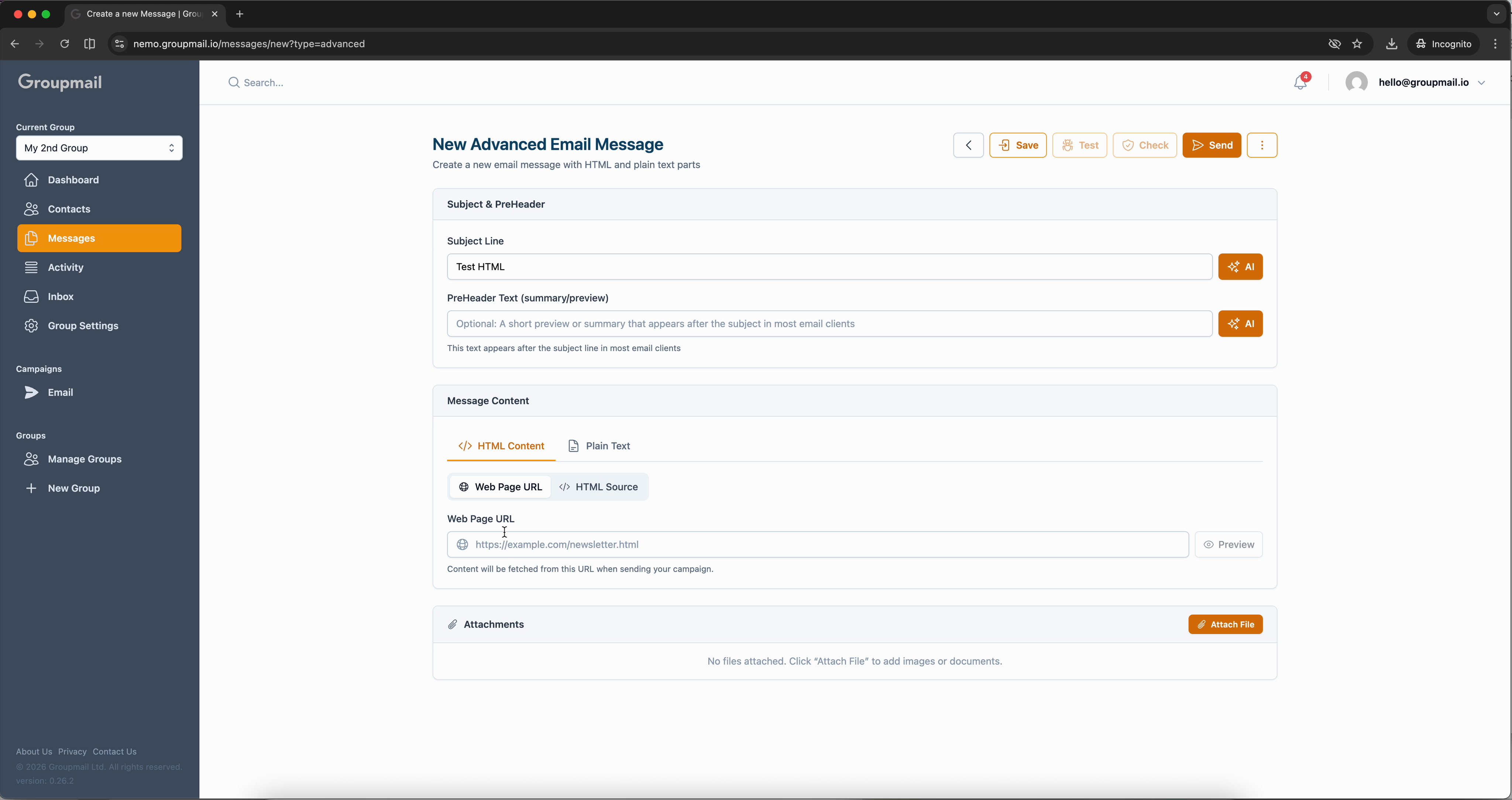
Below the editor, the Attachments section lets you attach files like PDFs or images to your email.
Preview Your Email
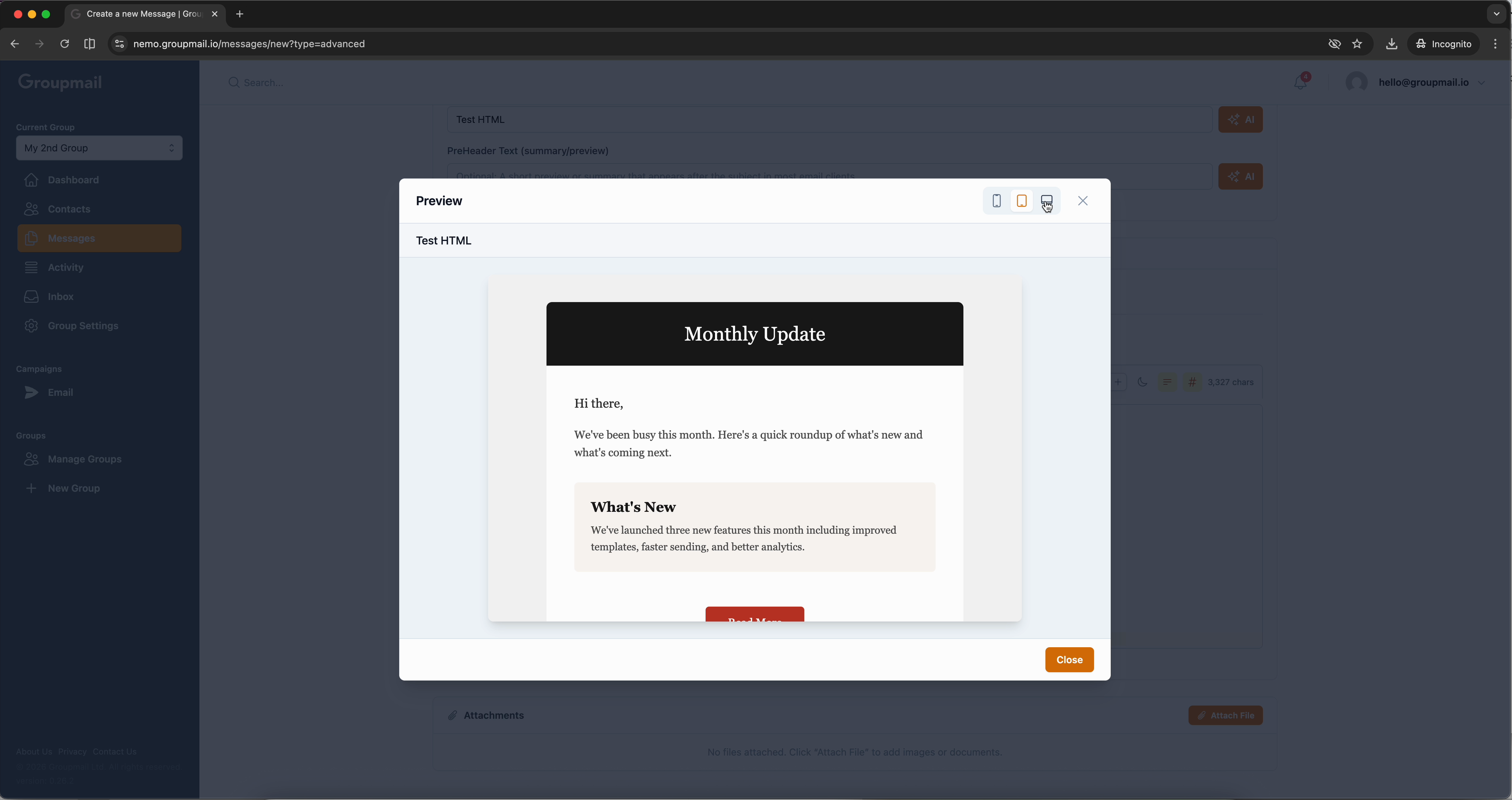
Once you've pasted your HTML, click Preview in the toolbar to see the rendered email. The preview modal shows your email in desktop, tablet, and mobile views so you can check the layout across devices.
Save, Test, and Send
When everything looks right, click Save. You'll see a confirmation toast.
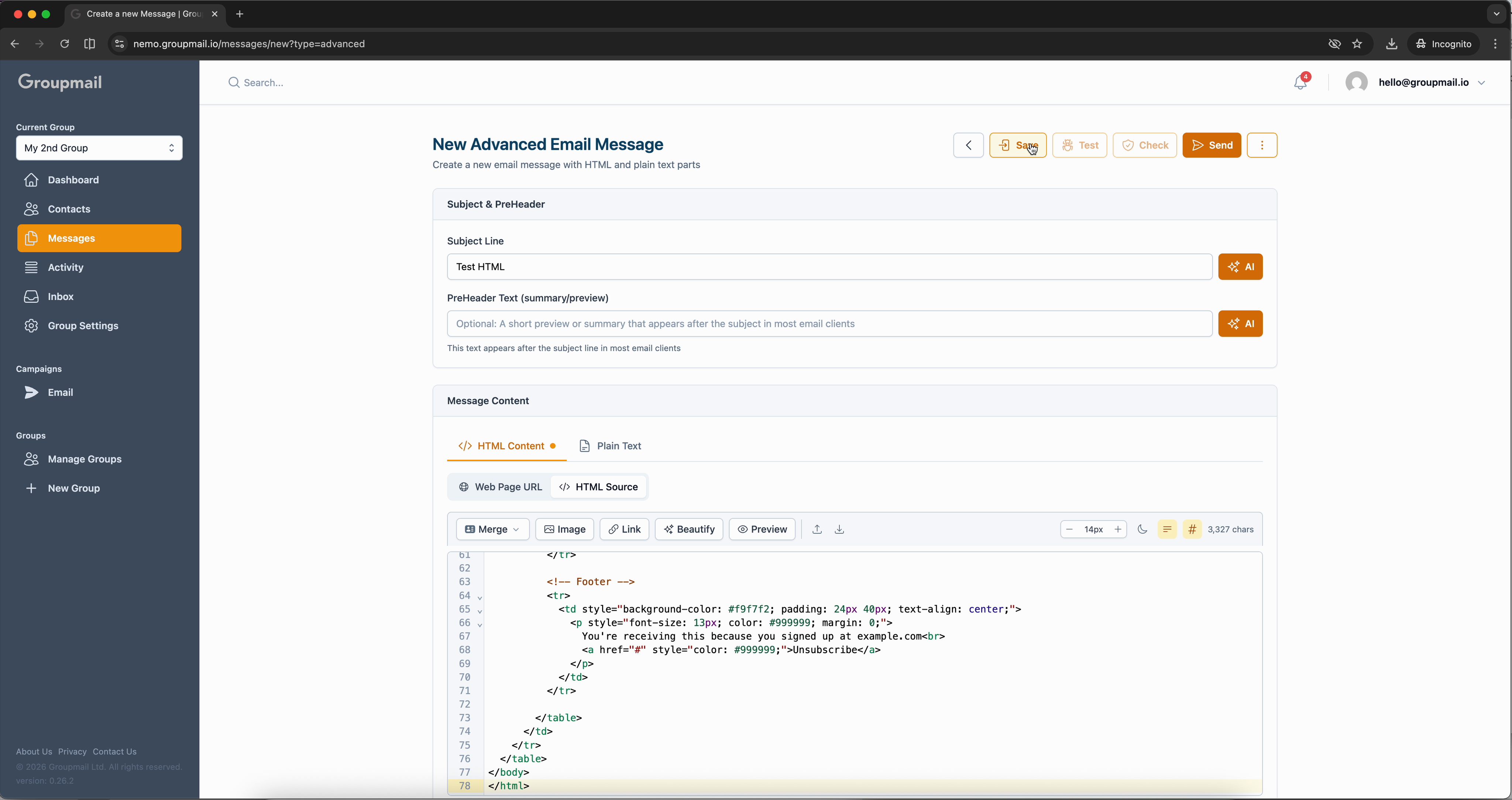
Use Check to run content moderation and Test to send yourself a preview email. Once you're satisfied, click Send to deliver your advanced email, or save it for later.