
The newsletter editor is markdown on the left, a live preview on the right. You write plain text with light formatting, and see exactly what subscribers will get as you type.
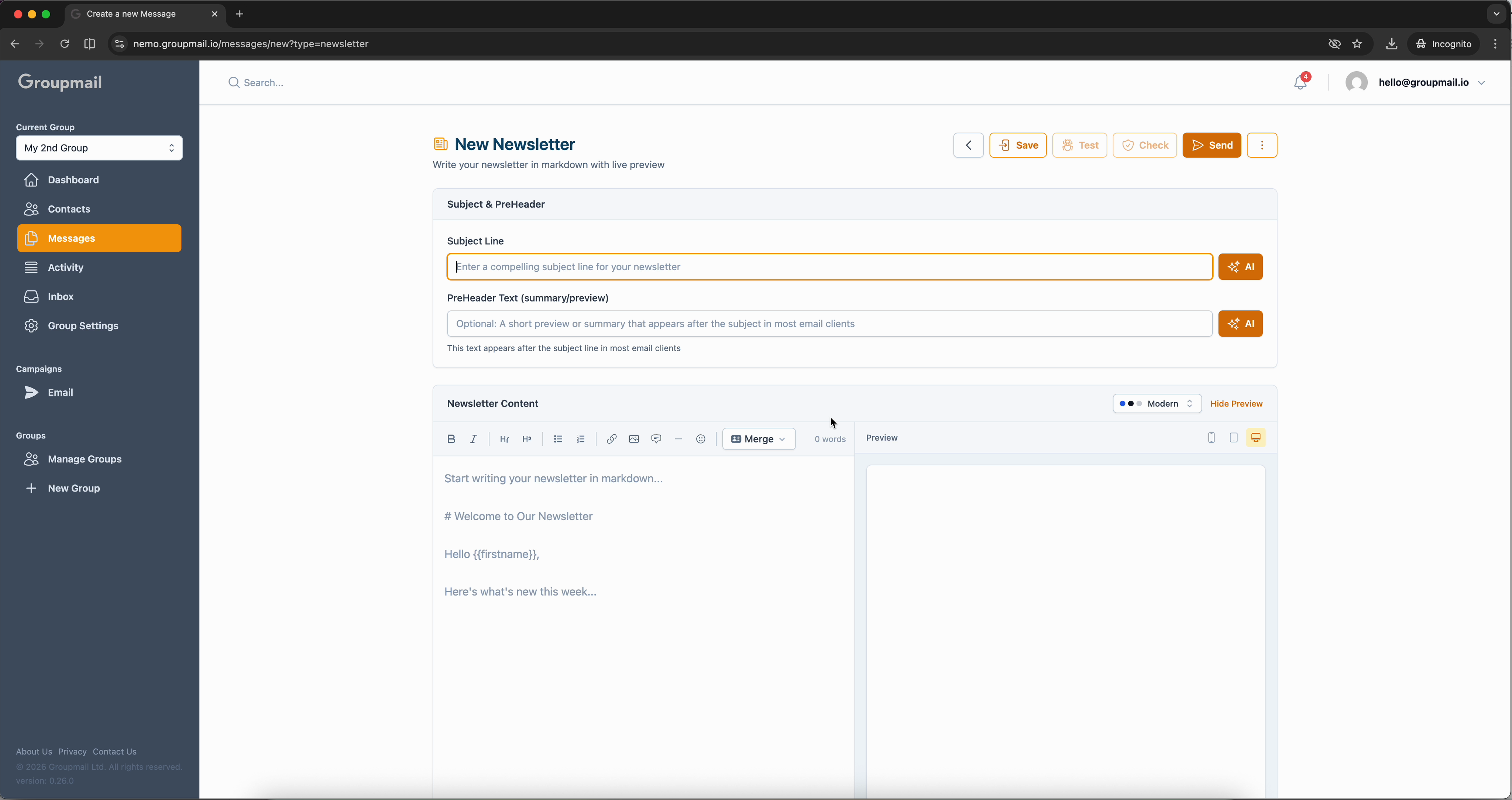
Starting one
From Messages, choose New Message → Newsletter. (The same menu offers From Template and Advanced, which is a full HTML editor — different tool, different job.)
Give it a Subject Line, and optionally PreHeader Text — the short summary most email clients show after the subject. Both have an AI button if you want a starting point rather than a blank field.
Formatting without leaving the keyboard
The toolbar covers the essentials: bold, italic, strikethrough, superscript and subscript, two heading levels, bulleted and numbered lists, links, images, and emoji.
You don't have to reach for it, though. Two faster routes:
- Type
/on a new line to open formatting commands where the cursor already is - Keyboard shortcuts for the common marks, as in any editor
Insert and More
Insert adds the things a newsletter needs beyond text — merge fields, buttons, polls and ratings among them. More holds the less-used options, keeping the main toolbar uncluttered.
Merge fields personalise each copy: {{firstname}} becomes the recipient's first name. They're written as plain text, so you can type them directly once you know the names.
Call-to-action buttons are a proper button element rather than a bare link — worth using when you want one obvious action from an issue.
Images take an optional caption, shown beneath the image in the sent newsletter.
Live preview
The right-hand pane updates as you type. Above it you can:
- Switch theme — the selector shown as Modern changes the whole look
- Adjust Spacing — how airy or dense the layout reads
- Preview at desktop, tablet or phone width, using the icons at the top right of the preview
- Hide Preview to give the markdown pane the full width
The preview includes the header and the footer toolbar readers will see — Read on Web and Forward to a Friend appear when the newsletter publishes to your community archive.
Preview at phone width before sending. Most subscribers read on a phone, and a layout that works on a laptop can still fall apart there.
Checking before you send
Test sends a copy to yourself or a teammate, so you see it in a real inbox. Check runs content checks before it goes out. Save keeps it as a message you can reuse; Send moves to the sending flow.
Quick answers
What format do I write in?
Markdown, with a live preview beside it. A toolbar and a / command menu are there if you'd rather not remember syntax.
How do I personalise each email?
Merge fields such as {{firstname}}, inserted from the Insert menu or typed directly.
Can I add a proper button? Yes — a call-to-action button, via Insert. It renders as a button rather than a plain link.
Can I caption images? Yes. Images take an optional caption shown underneath in the sent newsletter.
How do I check it on mobile? Use the device icons above the preview to switch between desktop, tablet and phone width.
What's the difference between Newsletter and Advanced? Newsletter is markdown with a live preview. Advanced is a full HTML editor with separate HTML and plain-text parts, for when you need complete control of the markup.