
Ask readers how an issue landed without making them leave their inbox. A Reader Rating sits inside your newsletter, answers in a single tap, and updates live on your public archive.
Which scale should I use?
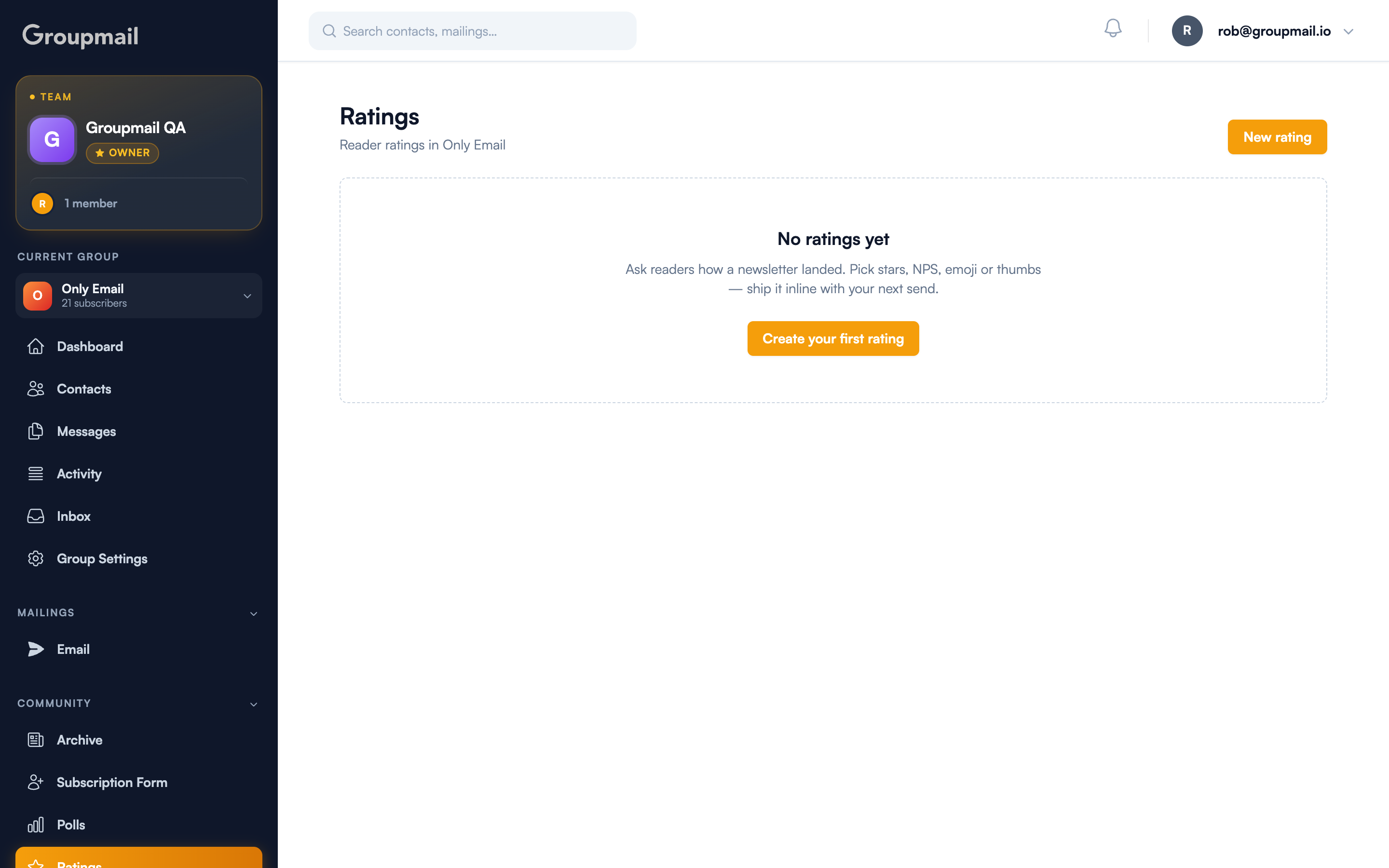
Open Ratings under Community in the sidebar, then New rating. You pick one of four scales, and the right choice depends on what you actually want to learn:
- Stars (1—5) — the default. Best for general end-of-newsletter feedback.
- NPS (0—10) — how likely a reader is to recommend you. Use it when you're tracking a number over time.
- Emoji (5 faces) — a softer, more emotional read. Good for community newsletters where a number feels clinical.
- Thumbs (Yes / No) — a quick binary check. Highest response rate, least nuance.
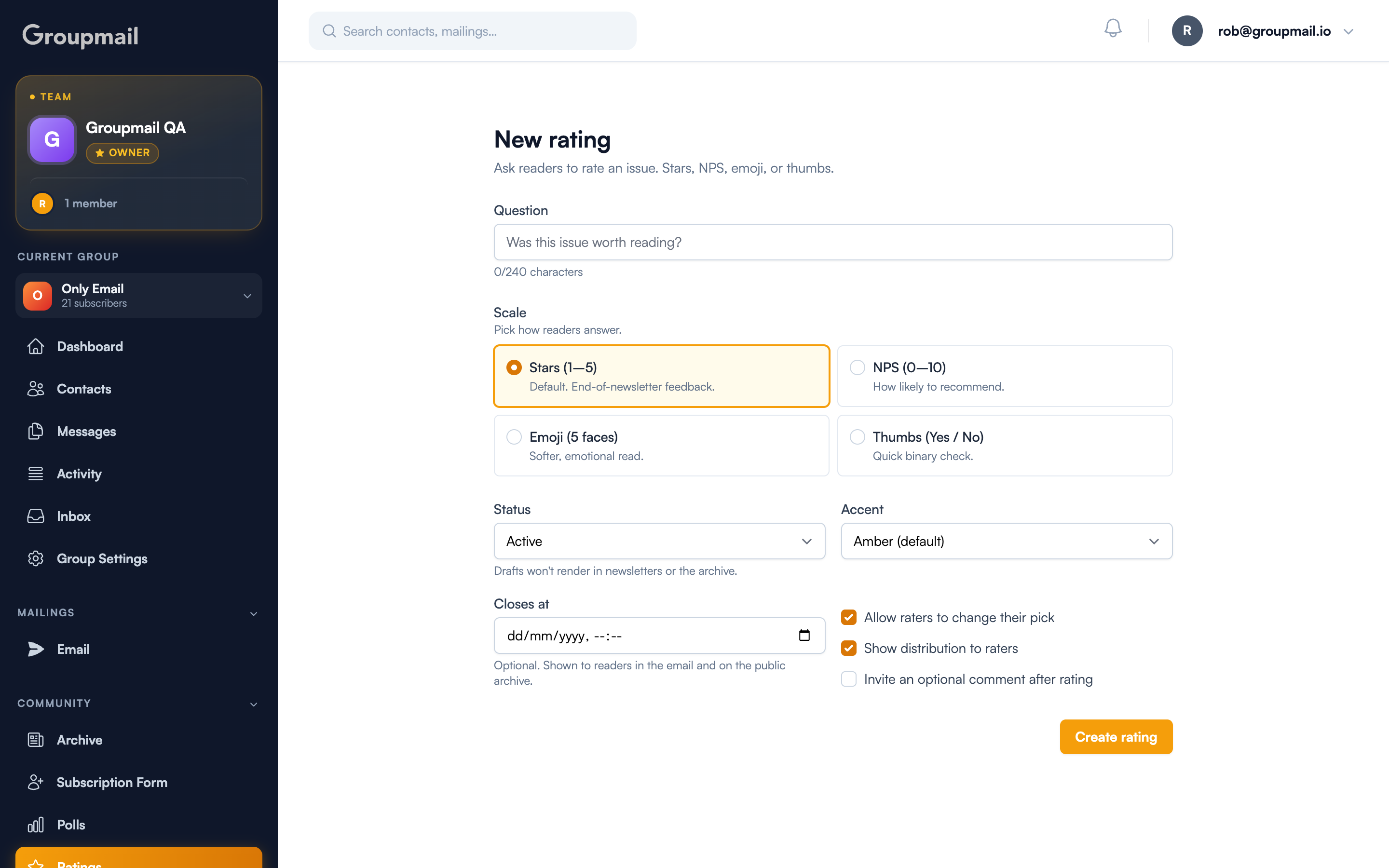
Your Question can run to 240 characters. Keep it to a single, answerable ask — "Was this issue worth reading?" beats anything longer.
What can readers do after they rate?
Three settings control the reader's experience, and the first two are on by default:
- Allow raters to change their pick — a misclick isn't final.
- Show distribution to raters — after rating, readers see how everyone else answered. It rewards responding, but it can also nudge later answers toward the crowd; turn it off if you want independent responses.
- Invite an optional comment after rating — off by default. Turn it on when the number alone won't tell you why.
Where do results appear?
Results update live in three places: the running average on your community archive, a self-updating results image inside the email, and a confirmation page the reader sees after answering.
Ratings only earn their place if you act on them. A score with no follow-up is a metric; a score plus a comment is an edit to next week's issue.
Setting it live
Leave Status as Active — a rating saved as a draft won't render in newsletters or on the archive. Optionally set Closes at to stop collecting after a date; readers see that deadline in the email and on the archive. Accent sets the colour to match your newsletter.
Then insert the rating into your newsletter from the editor toolbar and send as usual.
Quick answers
What rating scales are available? Four: stars from 1 to 5, an NPS score from 0 to 10, five emoji faces, or a thumbs up/down.
Do readers need to log in to rate? No. They rate in one tap directly from the email.
Can readers explain their rating? Yes, if you enable "Invite an optional comment after rating". It's off by default.
Can a reader change their rating? Yes, while "Allow raters to change their pick" is enabled — it is by default.
Should readers see everyone else's answers? Your call. "Show distribution to raters" is on by default and encourages responses, but it can bias later answers toward the majority.