
This guide walks you through connecting your Groupmail account with SendGrid, a trusted email delivery service that integrates seamlessly with Groupmail.
SendGrid provides a free allowance of 100 emails per day, which is perfect for getting started. If your email needs grow, SendGrid offers flexible paid plans to scale with your business.
Step 1: Create Your SendGrid Account
Let's start by setting up the connection between Groupmail and SendGrid.
Access the Channels page
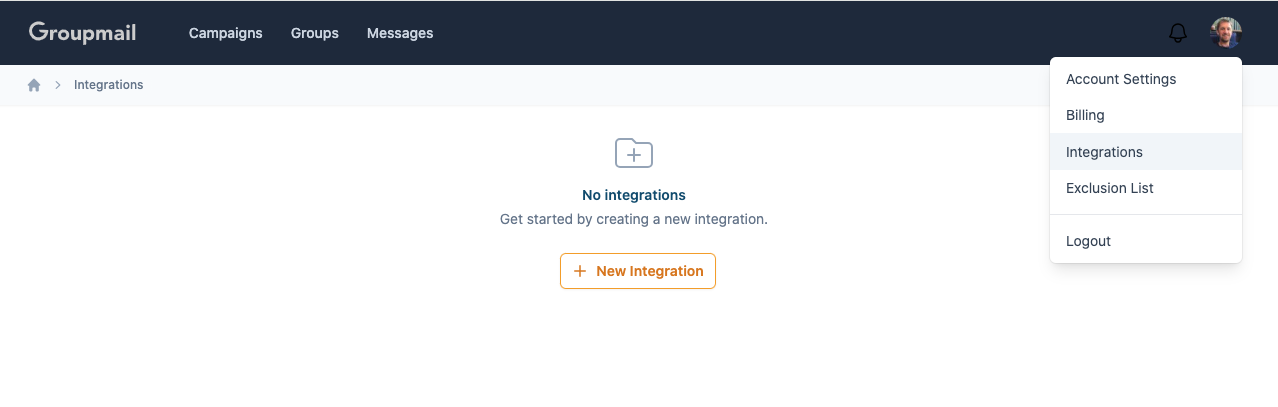
Click on your profile icon in the top right corner of your Groupmail dashboard and select Channels from the dropdown menu.
Add a new channel
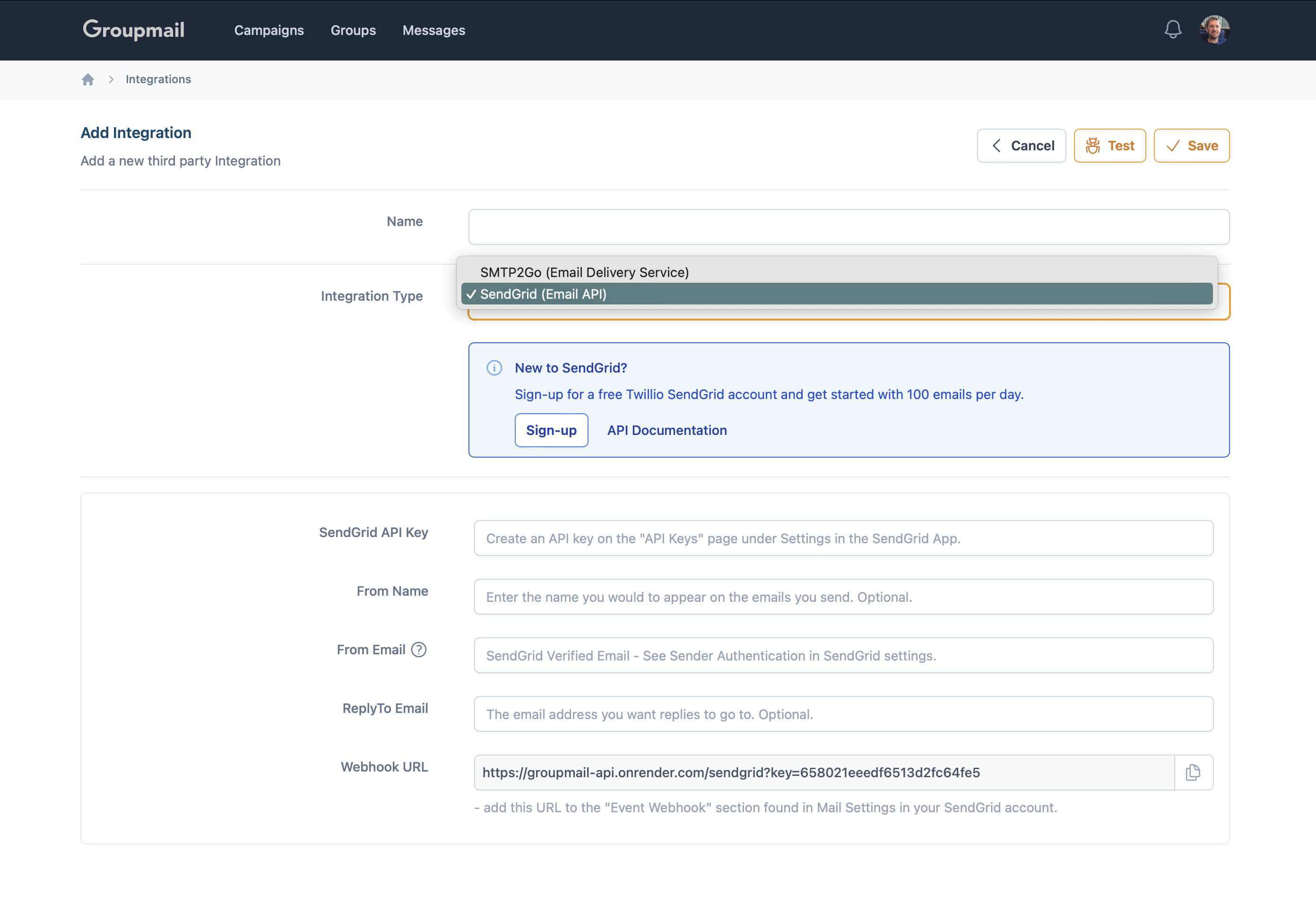
Click the + New Channel button to open the channel setup screen.
Sign up for SendGrid
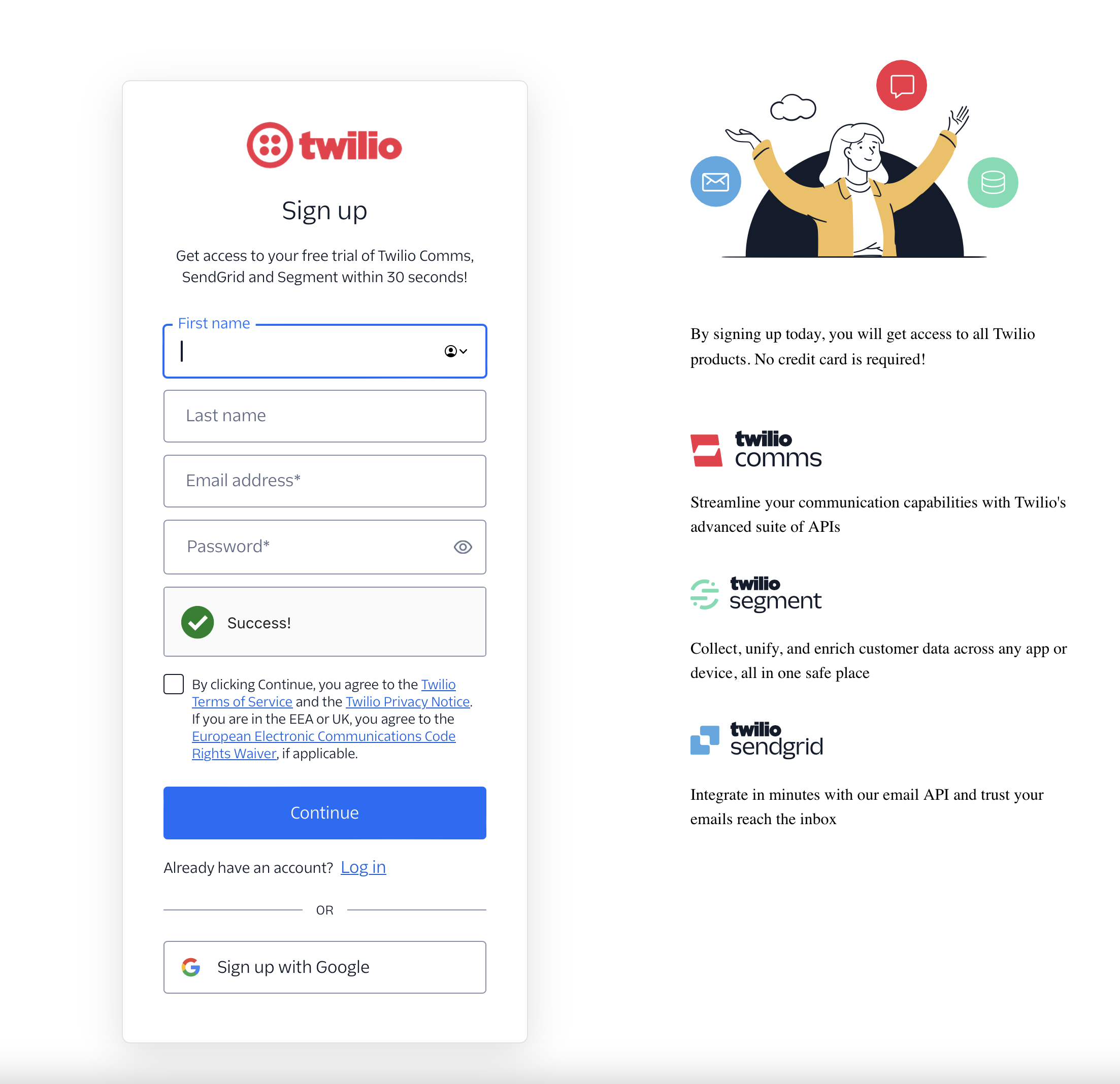
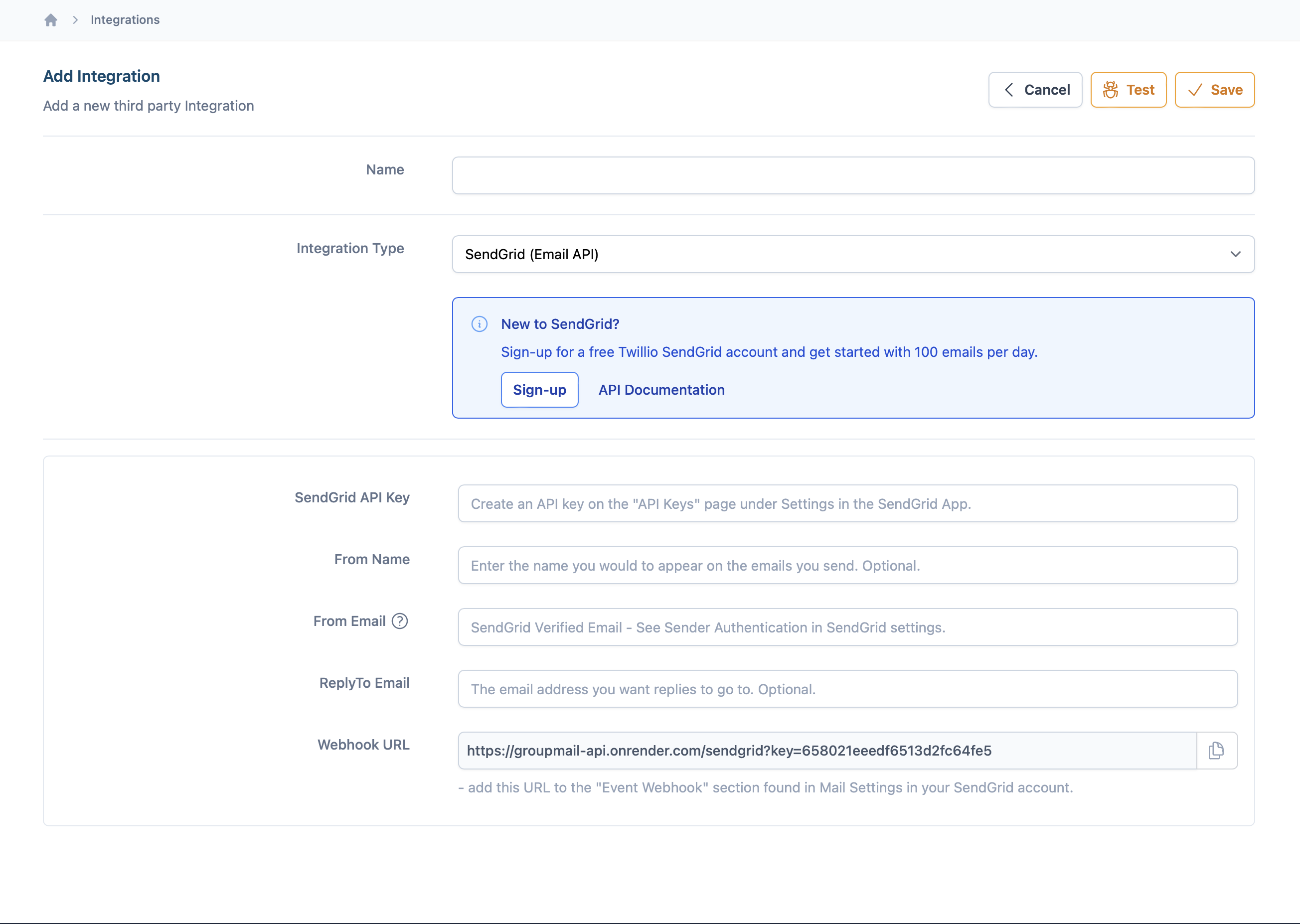
Choose "SendGrid (Email API)" in the Integration Type dropdown, then click the Sign-up button. This will open the SendGrid/Twilio sign-up page. Fill in your name, email address and password to complete the registration. You'll receive a verification email to confirm your account.
Step 2: SendGrid Account Setup
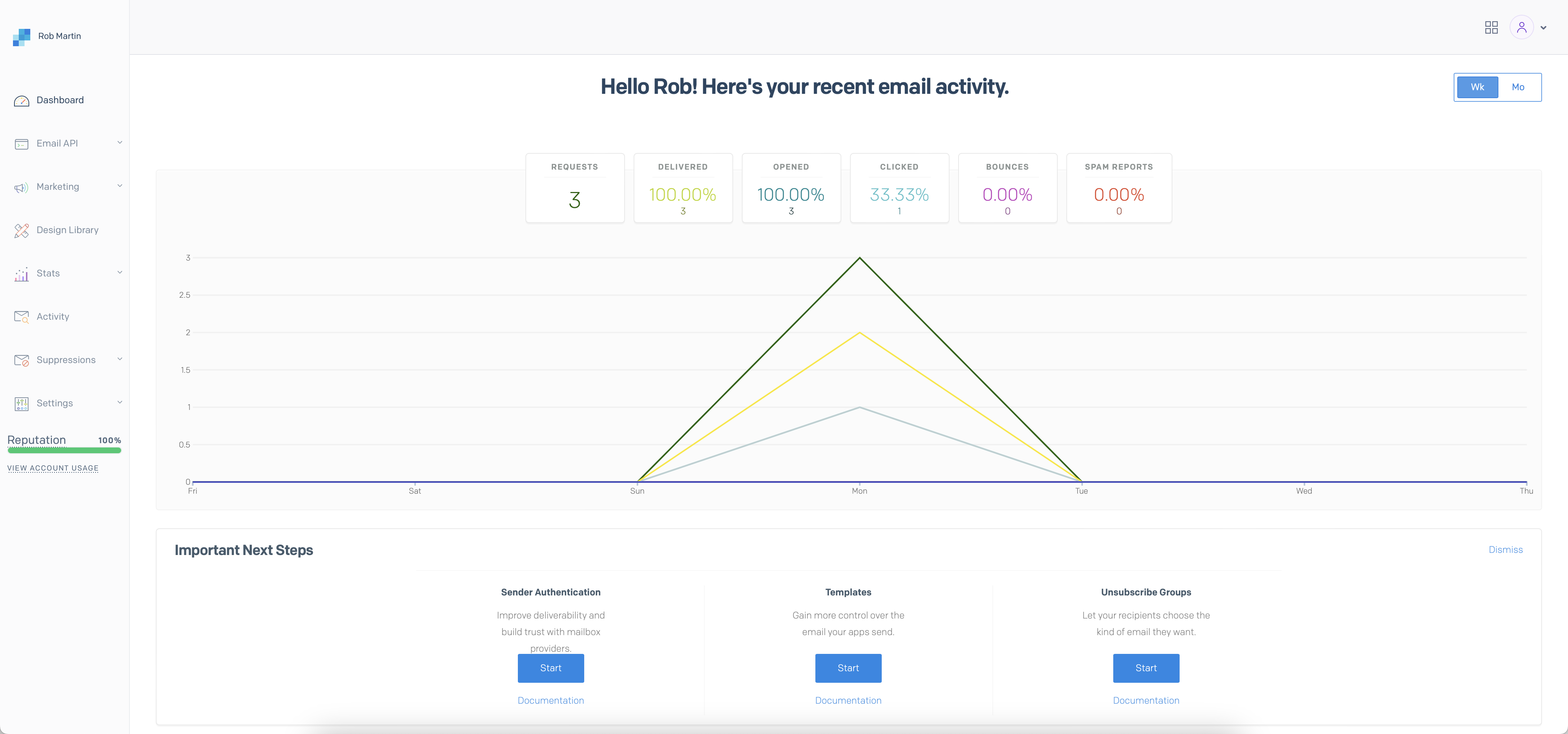
After completing the signup process and logging into your SendGrid dashboard, you'll need to complete the following steps.
1. Add your Verified Senders
Verifying your sender identity is essential for authorisation to send emails. You have two options:
Option A (Recommended): Verify your domain(s) as Sender Domains for the best deliverability, ensuring SPF and DKIM alignment. Contact your email provider or IT team to set this up.
Option B: Verify individual email addresses under Settings > Sender Authentication.
For more information, see the SendGrid Sender Authentication guide.
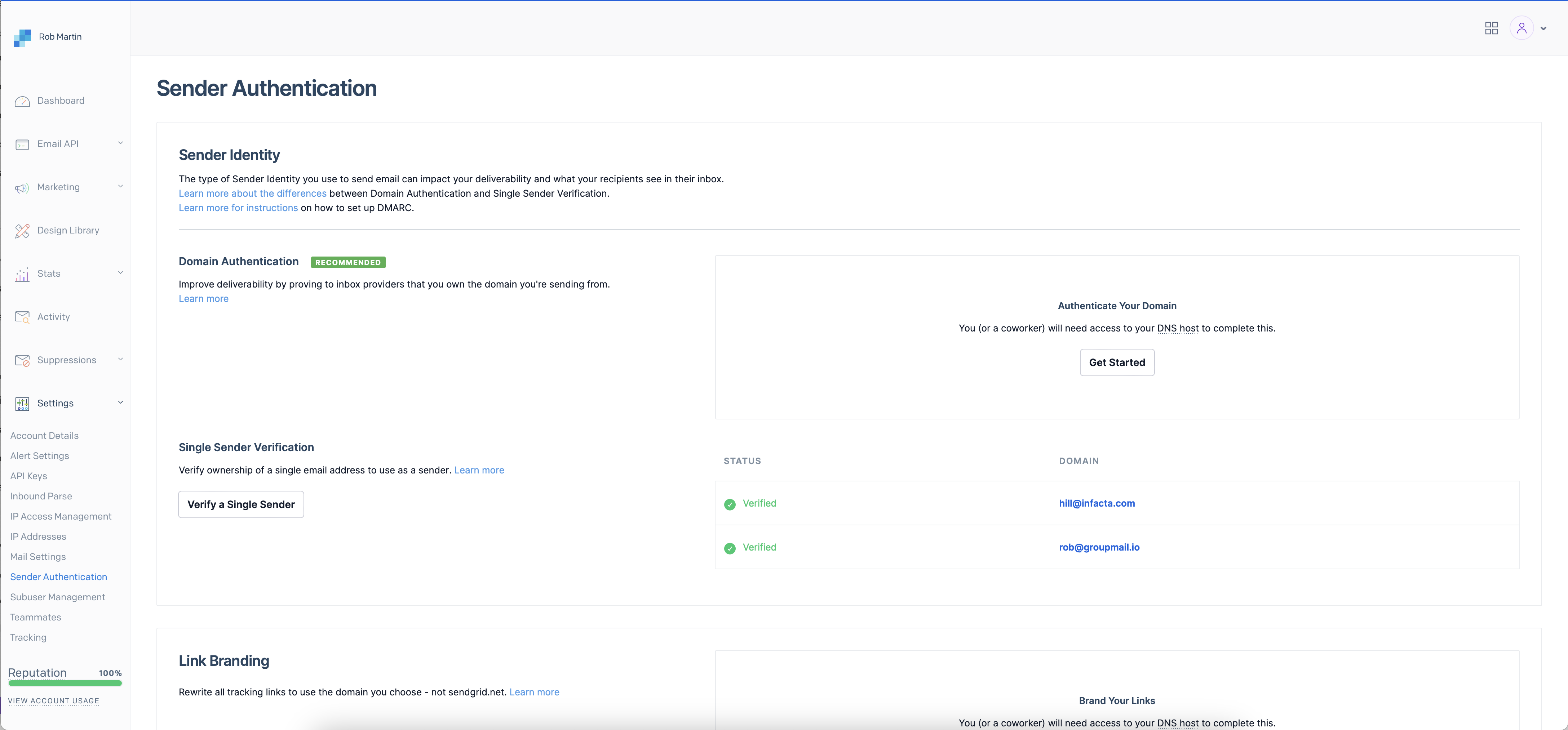
Once verified, add your sender email to the From Email field within Groupmail.
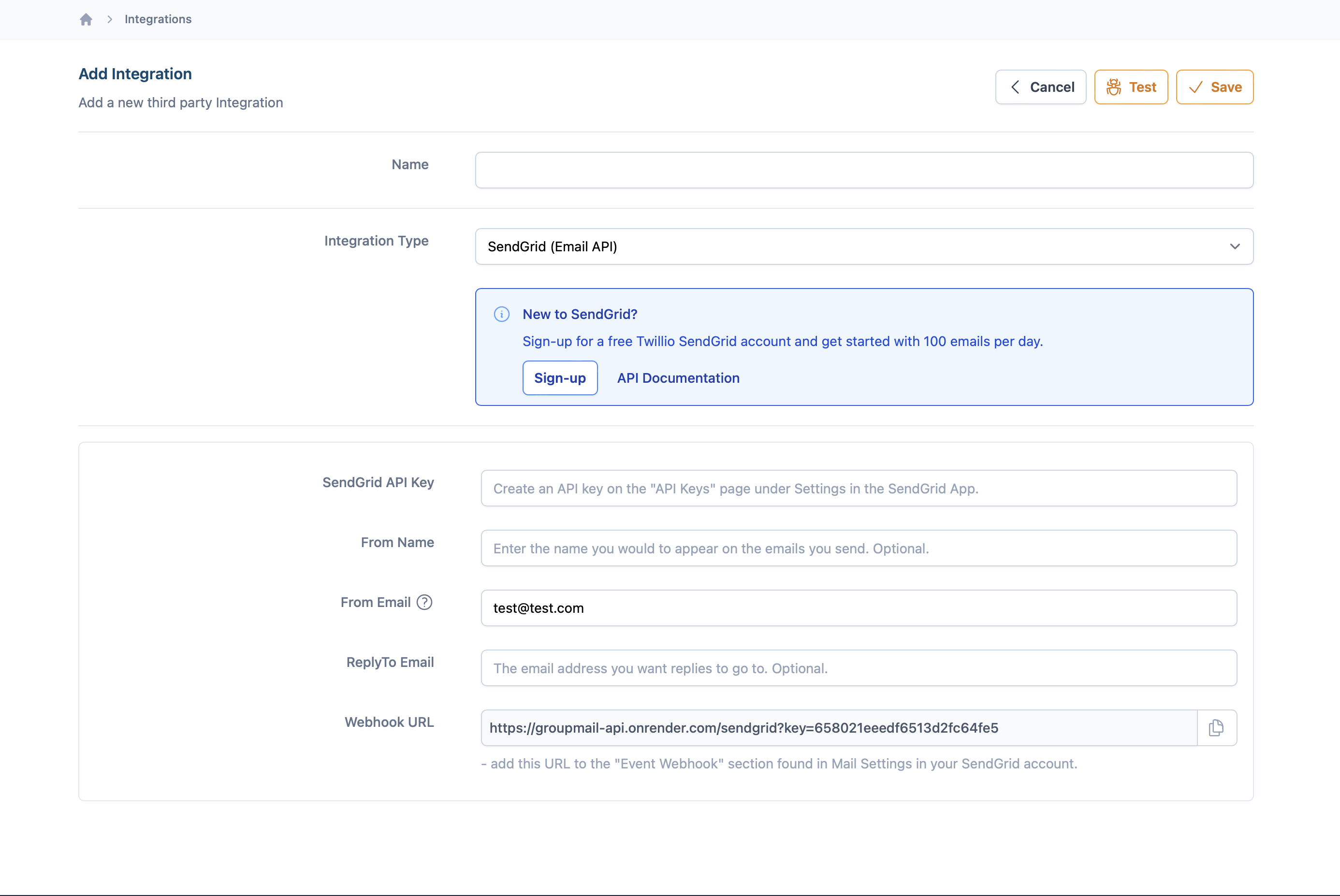
2. Create an API Key
An API Key routes your email from Groupmail to SendGrid. Navigate to Settings > API Keys in your SendGrid dashboard.
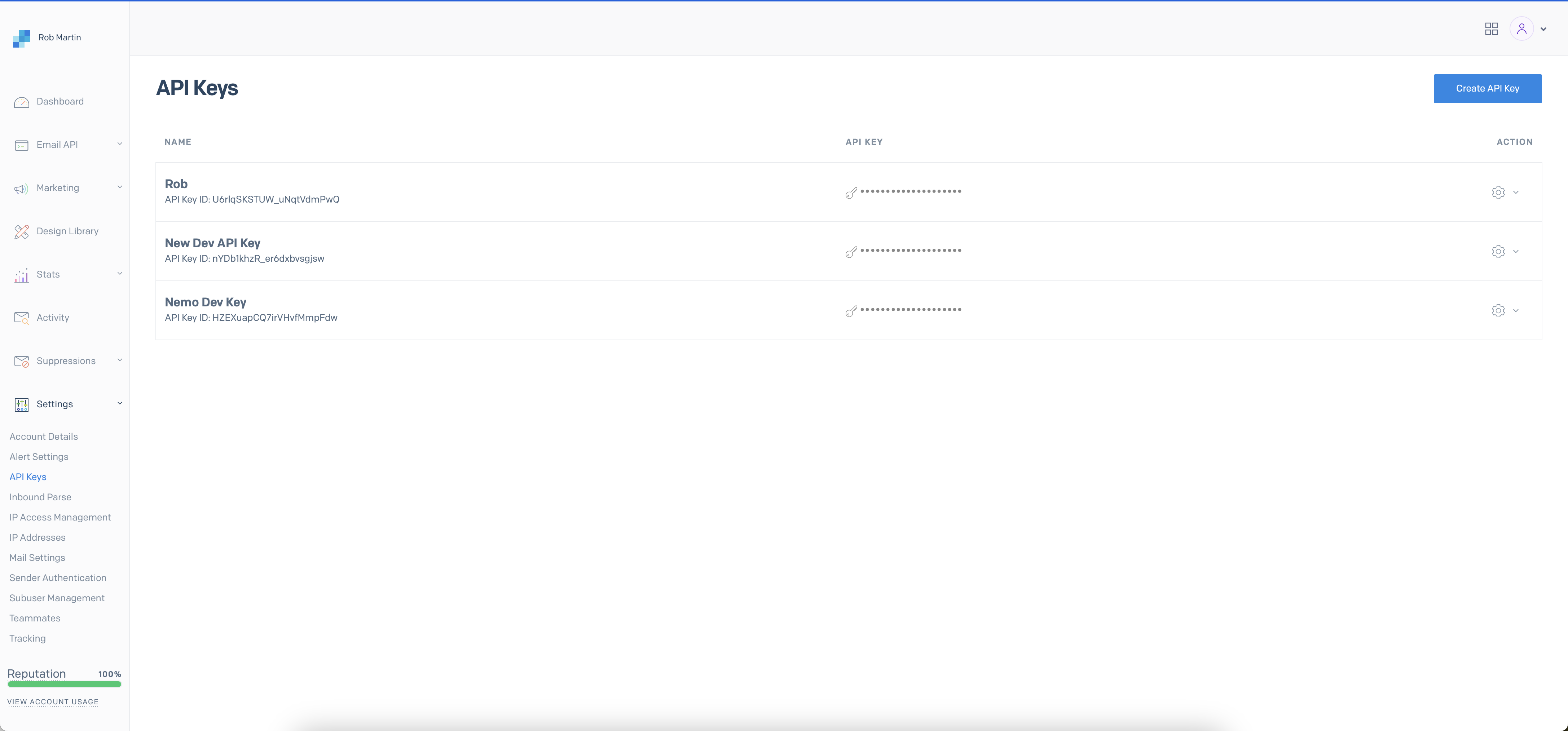
Click Create API Key, choose a name and your desired permissions, then click Create & View.
Once created, add your API Key to the SendGrid API section within Groupmail.
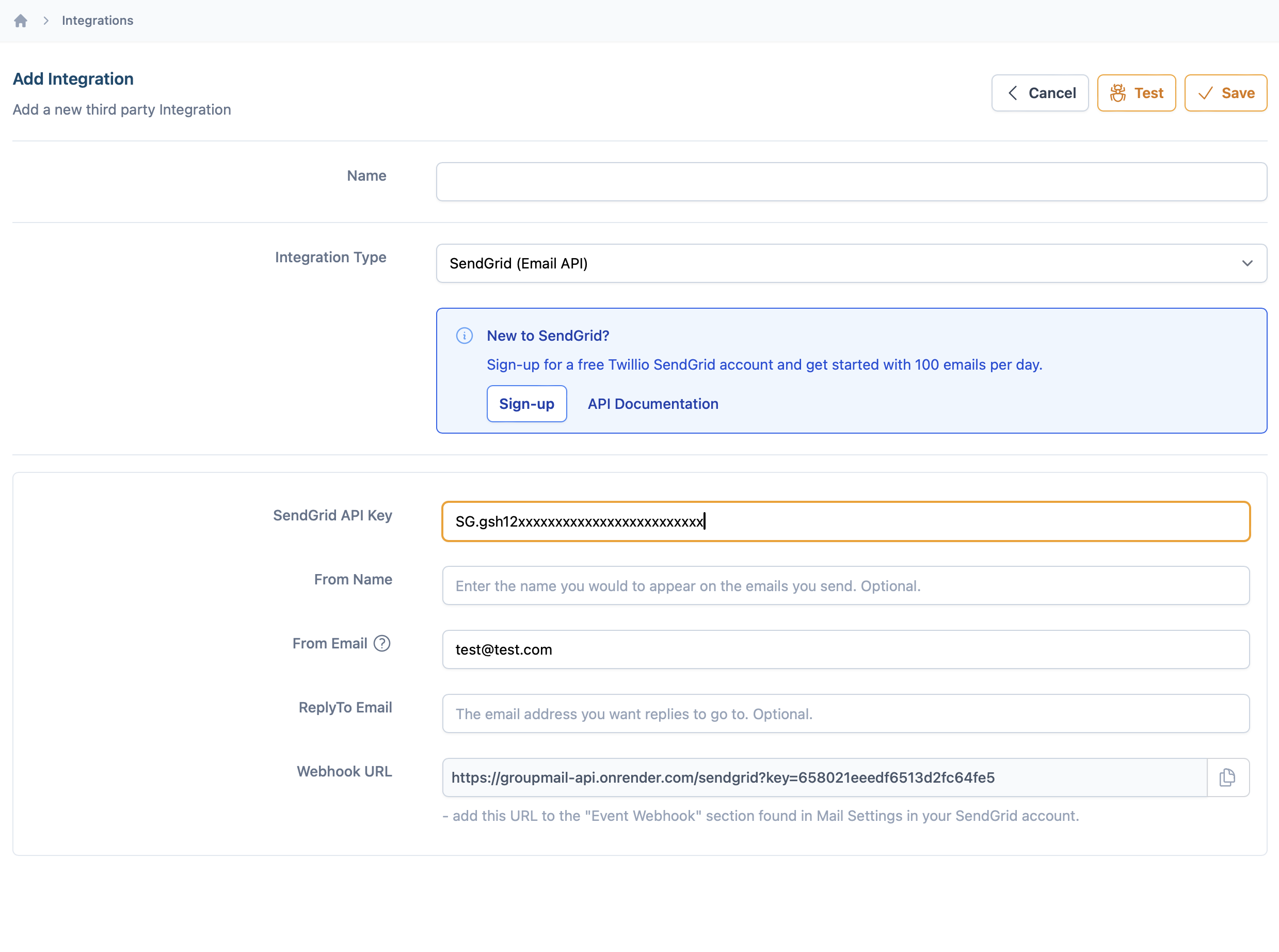
Add a From Name and Reply-To Email if required, then click Save. You can test the integration by clicking the Test button.
3. Add the Groupmail Webhook URL
The webhook sends event data (Sent, Delivered, Opened, Clicked, Bounced, etc.) back to Groupmail for processing.
Open the Groupmail Integration page and copy the Webhook URL at the bottom of the screen.
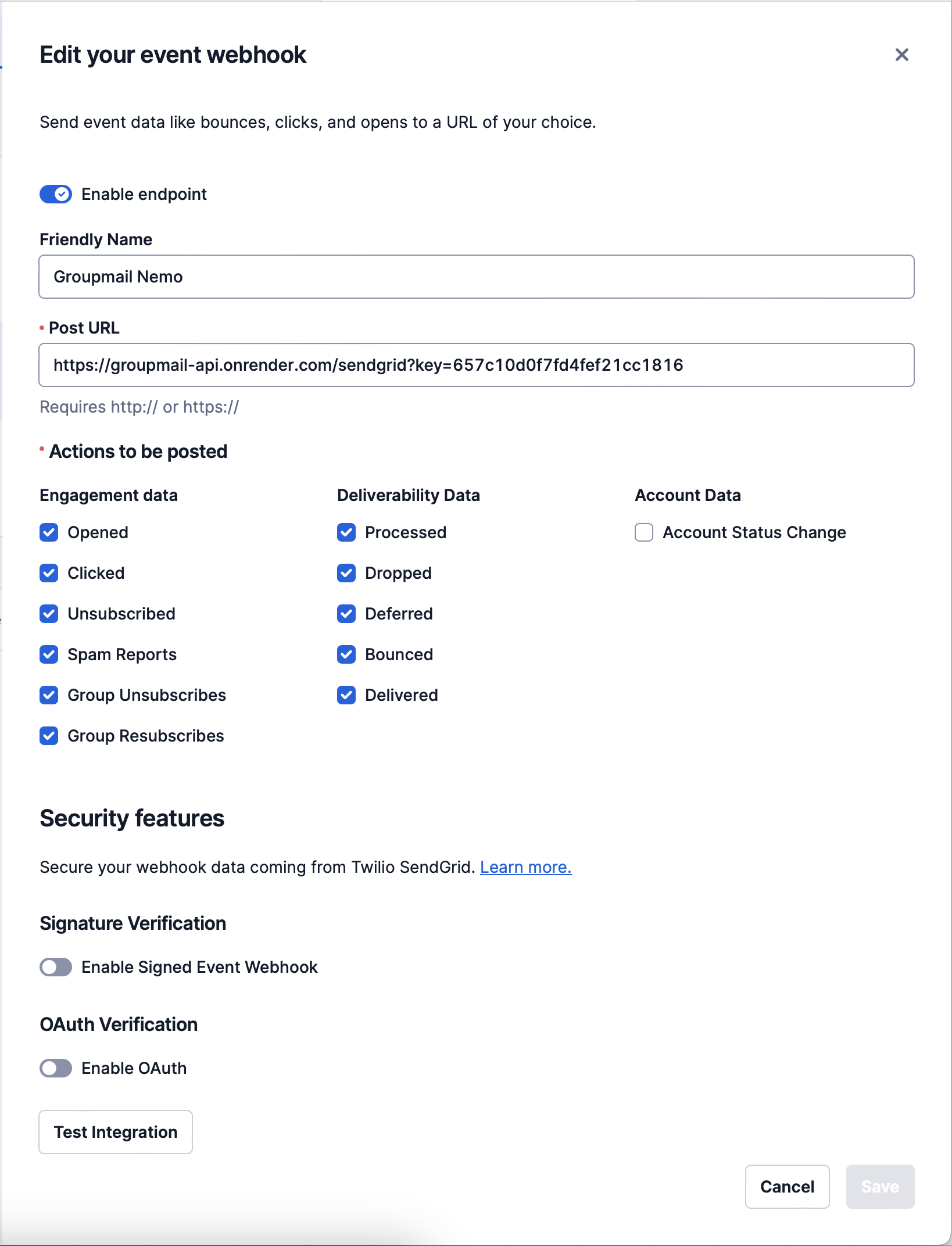
In SendGrid, navigate to Settings > Mail Settings and select Event Webhooks. Click Create new webhook and paste your webhook URL into the Post URL field.
Choose all the events you wish to track within Groupmail — we recommend selecting them all.
4. Enable Tracking
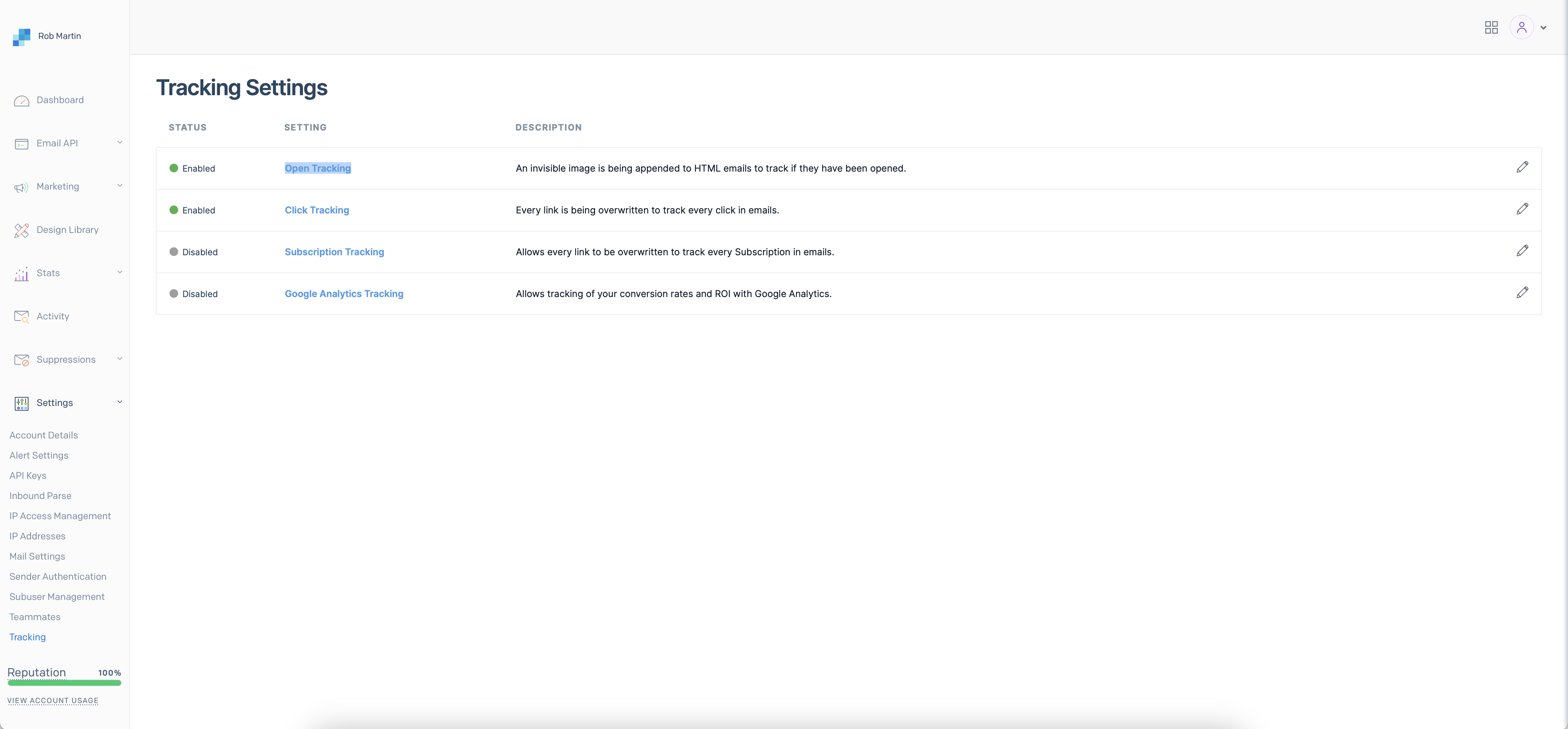
Finally, in SendGrid navigate to Settings > Tracking and ensure both Open Tracking and Click Tracking are enabled. This displays your newsletter stats within Groupmail.
That's it — you're all set to send emails with SendGrid from Groupmail!
Need Help?
If you have any questions or need help getting started, reach out to us at hello@groupmail.io.