
Welcome! This guide will walk you through connecting your Groupmail account with SMTP2GO, a reliable email delivery service that ensures your newsletters reach your subscribers' inboxes.
SMTP2GO provides all Groupmail customers with 10,000 free emails per month. If your email needs grow beyond this allowance, SMTP2GO offers additional packages at competitive rates.
Step 1: Create Your SMTP2GO Account
Let's start by setting up your free SMTP2GO account through Groupmail.
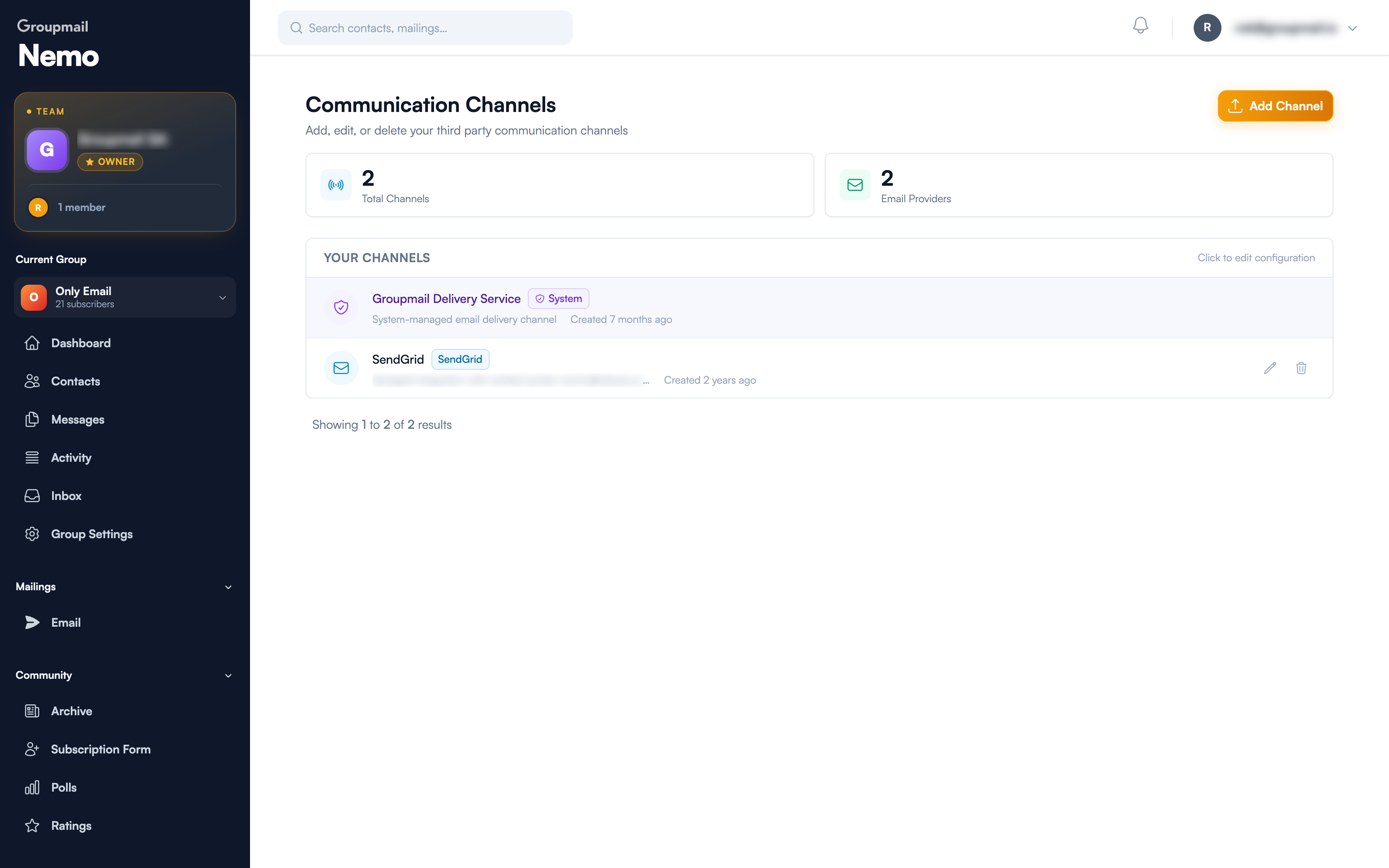
Access the Channels page
Click your profile icon in the top right corner of the Groupmail dashboard and choose Channels. This is where every sending channel on your account lives.
Add a new channel
Click the Add Channel button to open the channel setup screen.
Sign up for SMTP2GO
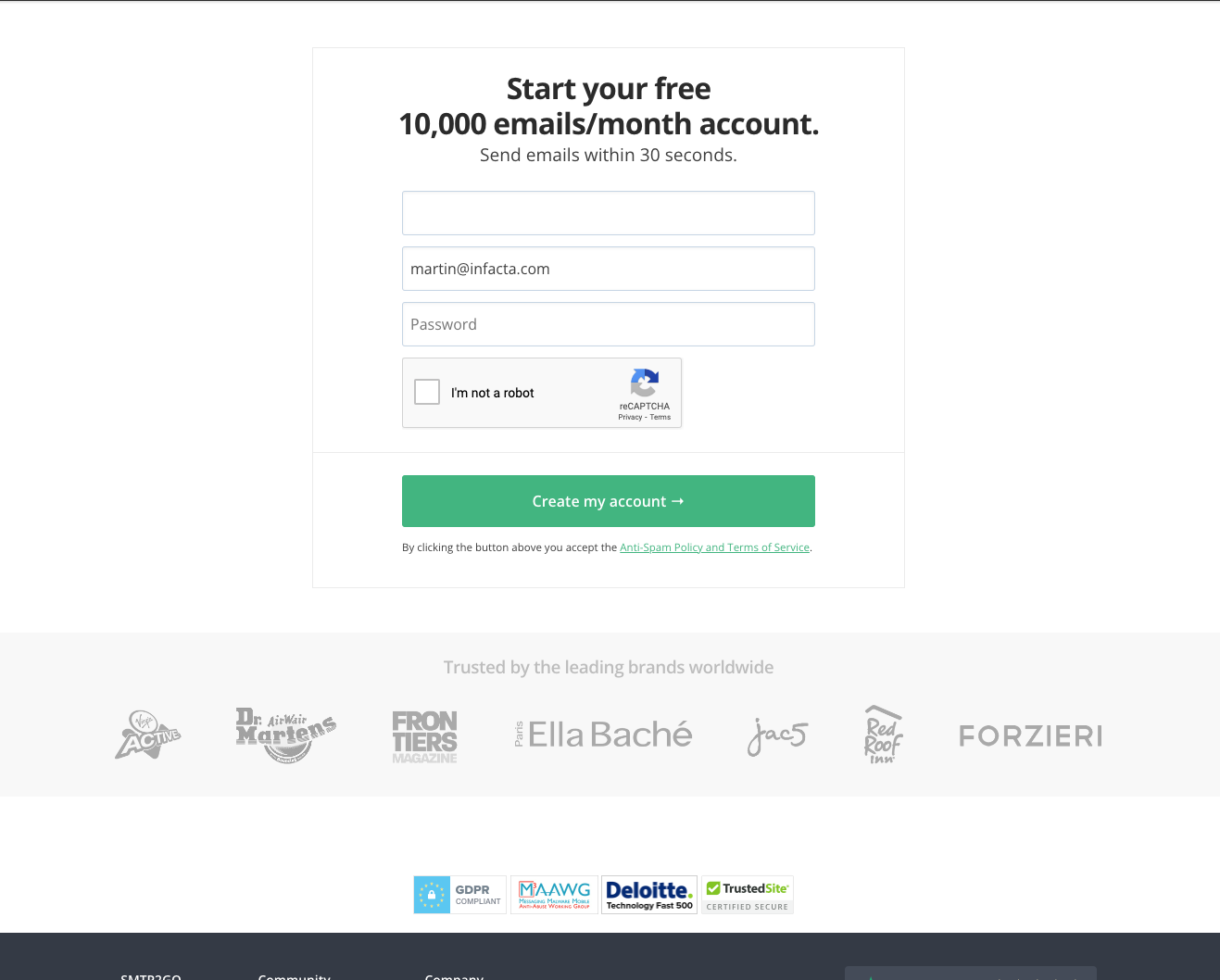
On the Add Channel screen, locate the SMTP2GO option and click the Sign-up button. This will take you to the SMTP2GO registration page where you can claim your free 10,000 emails per month.
Fill in your name, email address, and password to complete the registration. SMTP2GO will send you a verification email to confirm your account.
Step 2: SMTP2GO Account Setup
Once you've completed the signup and logged in to your SMTP2GO dashboard, you'll need to complete three setup steps.
1. Add your Verified Senders
Verifying your sender identity is essential for authorisation to send emails. You have two options:
Option A (Recommended): Verify your domain(s) as Sender Domains under 'Sending > Verified Senders'. This ensures SPF and DKIM alignment with your domain for best deliverability. Contact your email provider or IT team to set this up.
Option B: Verify individual email addresses as Single Sender Emails under the 'Sending > Verified Senders' section.
For more information, see the SMTP2GO Verified Senders guide.
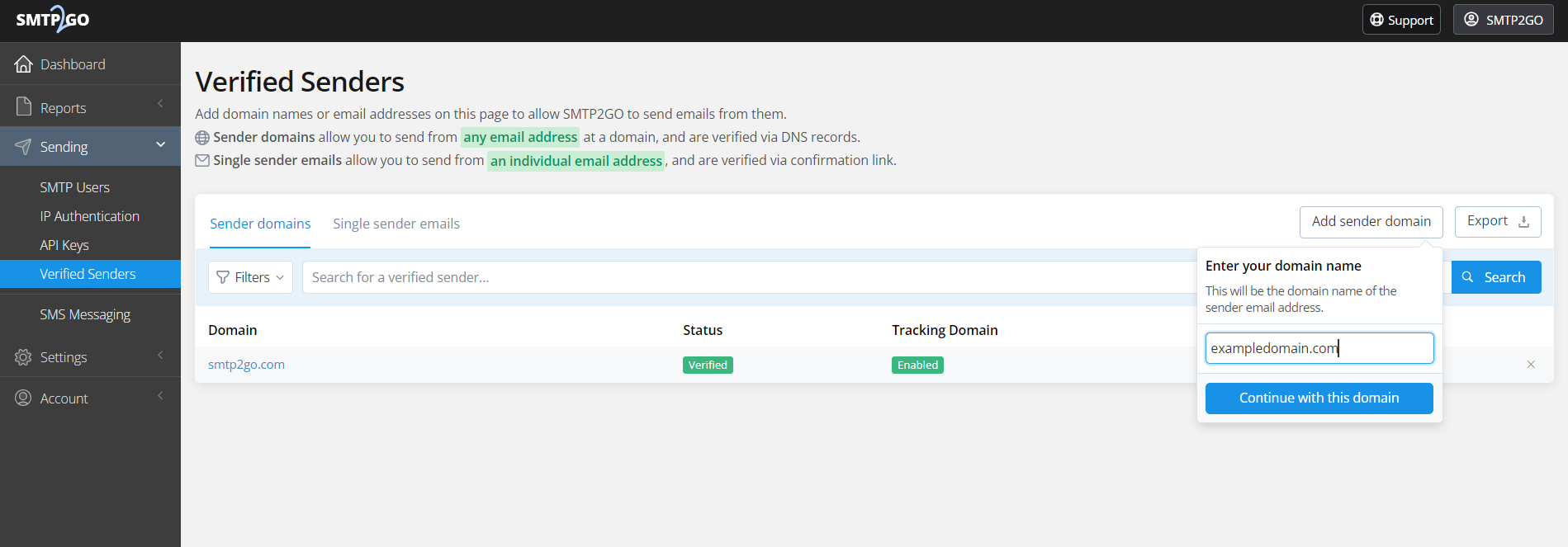
Make a note of the verified address — you'll put it in the From Email field on your Groupmail channel in the next step.
2. Create an API Key
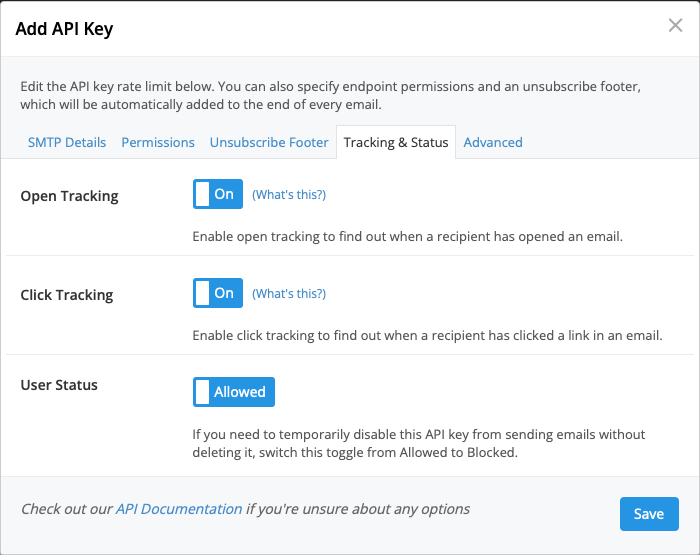
An API Key routes your email from Groupmail to SMTP2GO. Navigate to Sending > API Keys in your SMTP2GO dashboard.
Click Add API Key, set your desired permissions, then click Save.
Now go back to Groupmail, open Channels and either open your SMTP2Go channel or click Add Channel and set Channel Type to SMTP2Go. Everything you need is on this one screen.
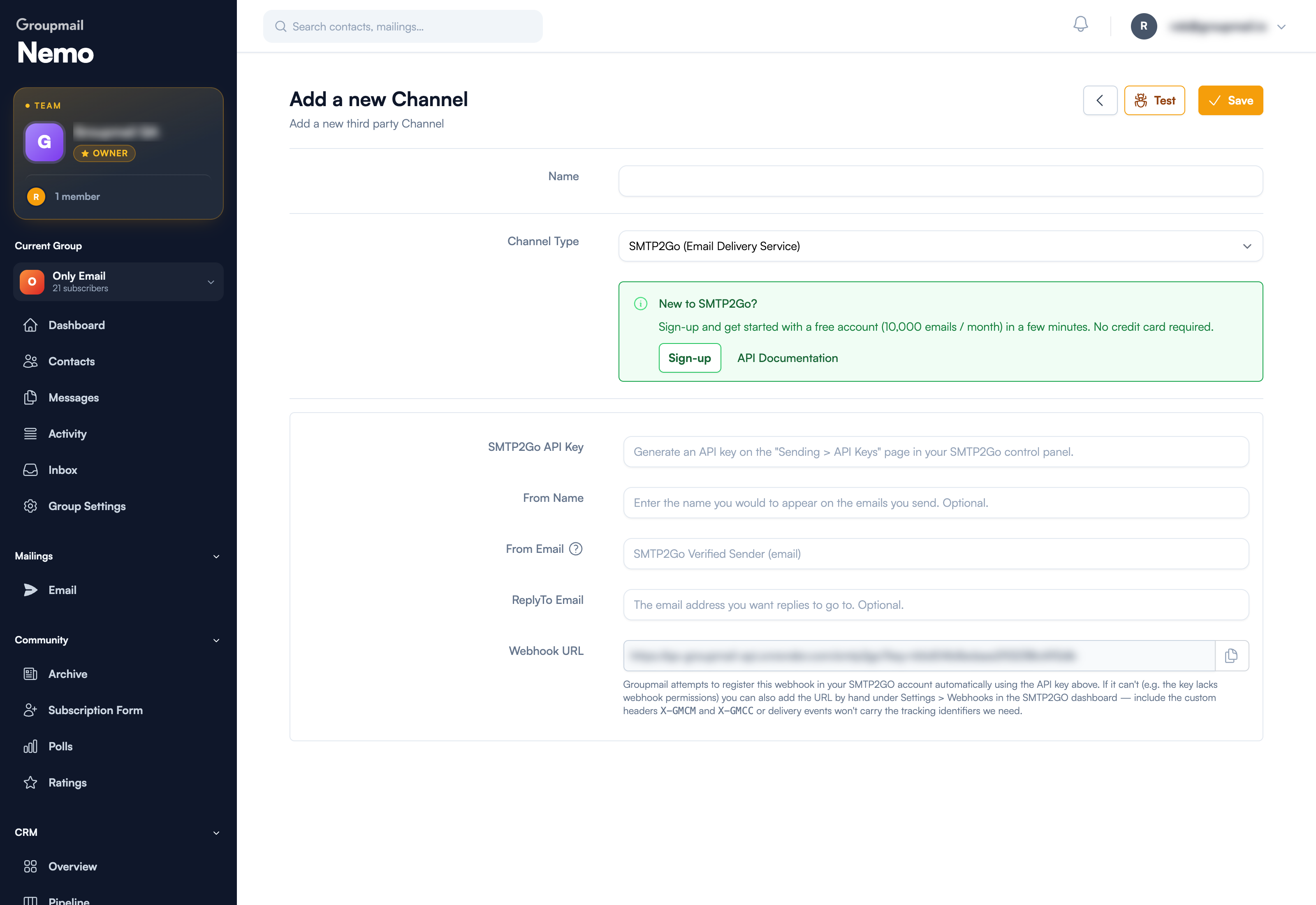
Fill in:
- SMTP2Go API Key — the key you just created
- From Name — the name recipients see. Optional.
- From Email — the sender address you verified with SMTP2GO in Step 2
- ReplyTo Email — where replies should go. Optional.
Give the channel a Name so you can recognise it later, then click Save. Test checks the connection once it's saved.
3. Add the Groupmail Webhook URL
The webhook sends event data (Sent, Delivered, Opened, Clicked, Bounced, etc.) back to Groupmail for processing. This is the step that makes bounce and unsubscribe handling work — without it, Groupmail never learns that an address bounced, so those contacts are never suppressed.
Groupmail will try to set this up for you. On your channel, under Delivery Tracking, click Check webhook — we use the API key you saved above to register the webhook in your SMTP2GO account automatically.
For that to work the API key needs the /webhook/view, /webhook/add and /webhook/remove permissions, which you can grant in the SMTP2GO dashboard. If the key doesn't have them you'll see "API key needs webhook permissions" — either add the permissions and click Check again, or set the webhook up by hand using the steps below.
Adding it by hand
Open your channel in Groupmail and copy the Webhook URL near the bottom of the screen (Fig. 5).
In SMTP2GO, go to Settings > Webhooks and click Add Webhook. Paste your webhook URL into the URL field.
Select the API key you created above under Users, and choose all the events you want to track — we recommend selecting them all, and Bounced in particular.
Output type can be either "Form Encoded" or "JSON". Groupmail accepts both, so if yours is already set to one of them you can leave it alone.
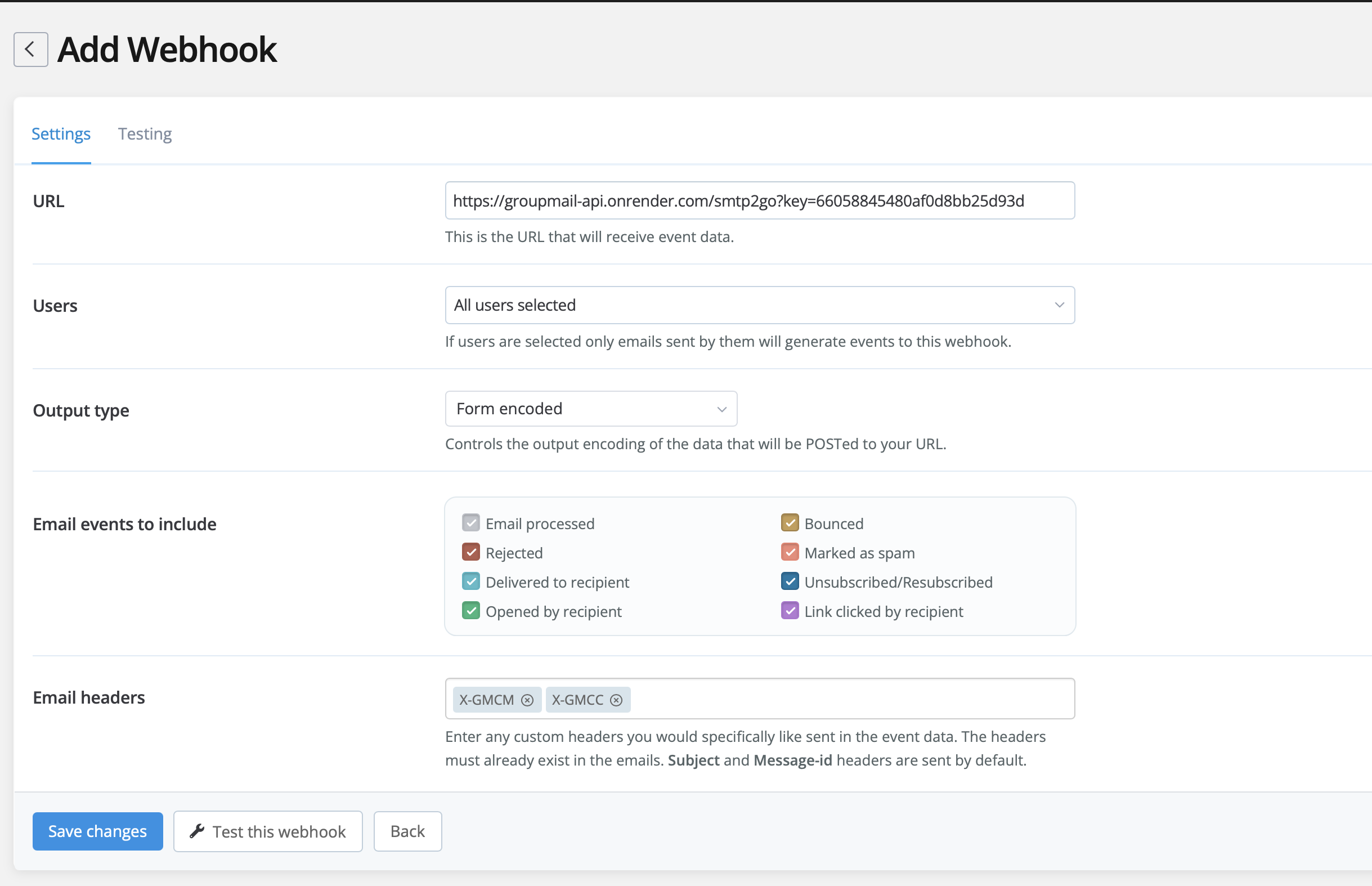
Click Save changes to save your settings. You're now set to send email through SMTP2GO from Groupmail!
Does this change my Groupmail sending limits?
No. This is worth being clear about, because it catches people out.
Connecting SMTP2GO changes who delivers your email, not how many emails your Groupmail plan allows. Every send still counts against your Groupmail monthly allowance, and sending still stops when that allowance runs out — at which point a campaign part-way through is marked limited.
So you have two separate limits to keep an eye on: SMTP2GO's allowance for delivery, and your Groupmail plan's monthly sends. Check the latter under Settings → Plans & Billing before a large campaign. See Plans, Usage and Limits.
Quick answers
Do I have to set the webhook up by hand? No — click Check webhook on your channel and Groupmail will try to register it for you. You only need to do it manually if the API key lacks webhook permissions.
Which permissions does the API key need?
/webhook/view, /webhook/add and /webhook/remove for automatic setup. Sending itself doesn't require them.
Should Output type be Form Encoded or JSON? Either. Groupmail accepts both.
What happens if I skip the X-GMCM and X-GMCC headers? Every event is discarded. Bounces won't be suppressed, unsubscribes won't be recorded and campaign stats will stay empty, even though the webhook appears to be working.
My webhook status still shows a warning — is it broken?
Not necessarily. Confirming the status needs the /webhook/view permission, so a manually created webhook can work while still showing a warning. Send a test campaign and check Activity.
Does SMTP2GO replace my Groupmail send allowance? No. Your Groupmail plan's monthly limit still applies to every send.
Need Help?
If you have any questions or need help getting started, reach out to us at hello@groupmail.io.