
Every group comes with a public subscription form — a hosted page people can use to sign up for your emails. Share the link on your website, in a social bio, or anywhere you want to grow your list.
Turning it on
Open Subscription Form in the sidebar, under Community. It has its own page now, alongside Archive and Polls.
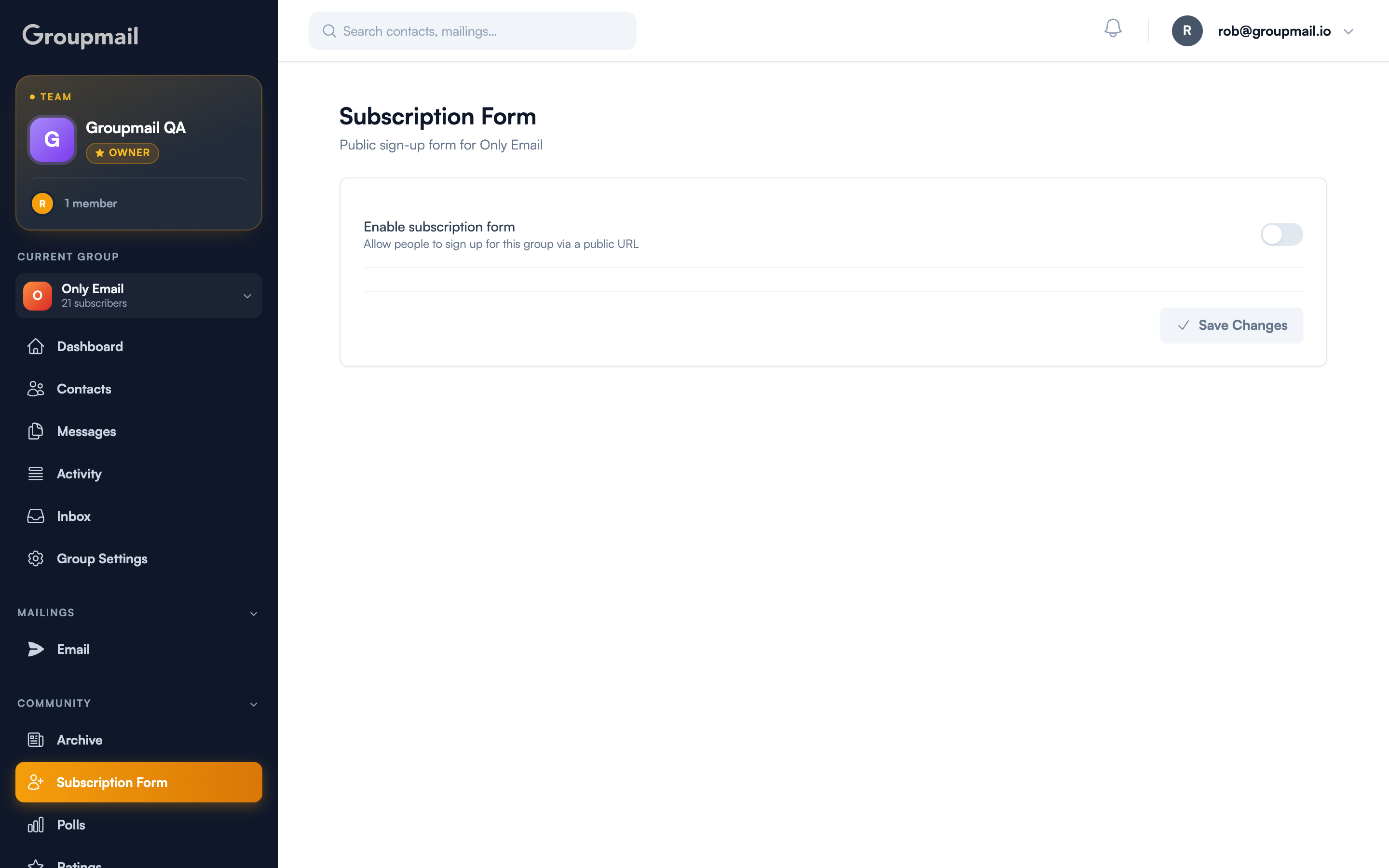
Switch on Enable subscription form to allow people to sign up via a public URL, then Save Changes. It's off by default.
Branding it
Once the form is enabled you can make it look like you rather than like a default:
- Your logo appears at the top of the form, so subscribers recognise who they're signing up to
- Colours can be themed to match your brand rather than the default palette
The same branding carries to the subscribe pop-up widget, so an embedded form and the hosted page look consistent.
What happens after someone subscribes
By default a new subscriber sees a plain confirmation. You can do better: set a call to action for the post-subscribe moment — a link back to your site, your latest issue, or your archive.
That moment is the one time you have a new subscriber's full attention. Sending them somewhere useful beats leaving them on a dead end.
Double opt-in
Subscribers confirm their address before being added, which keeps invalid and mistyped addresses off your list. That protects your sending reputation, and it means the people on your list actually chose to be there.
Quick answers
Where is the subscription form setting? Subscription Form in the sidebar, under Community. It used to be a tab inside Group Settings; it now has its own page.
Is the form on by default? No. Enable it and save before sharing the link.
Can I match it to my brand? Yes — add your logo and set colours. The same branding applies to the embedded subscribe pop-up.
What do new subscribers see afterwards? A confirmation, plus any call to action you configure — a good place to link your archive or latest issue.
Where does the form URL come from? Your group's handle, the same one used for your community archive and your group's email address.